Category: Phones & Tablets

  • Alldocube iPlay60 Mini Pro review: The iPad mini killer

    Alldocube iPlay60 Mini Pro review: The iPad mini killer

    Alldocube has made probably the best (for the money) 8inch tablet out there, and the ultimate couch device

    Alldocube is a name you’ve probably never heard of, but in the world of Android tablets, they’ve slowly been building a name for themselves. They’re also one of the few manufacturers who hasn’t ignored the need for a smaller, 8 inch tablet.
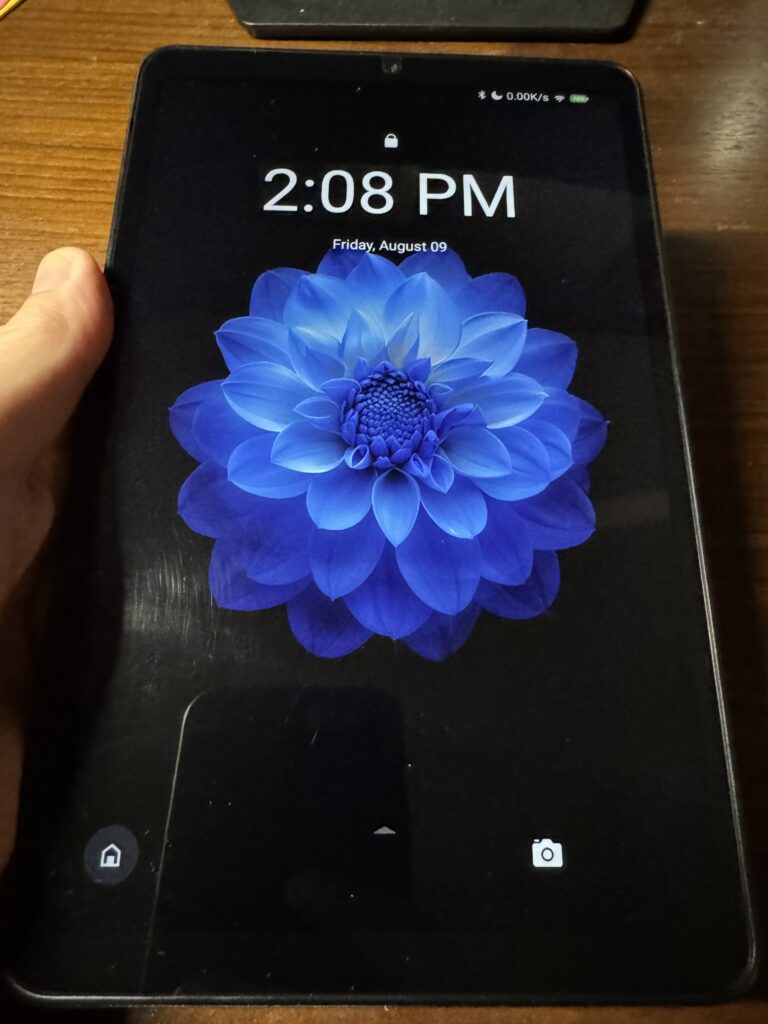
    What we love: It’s fast, easy to use and the screen is fantastic. Android 14 and face unlocking is useful.

    Pause for thought: The only let down is the sound, which is terrible.

    Buy the Alldocube iPlay60 Mini Pro on Amazon

    Screen

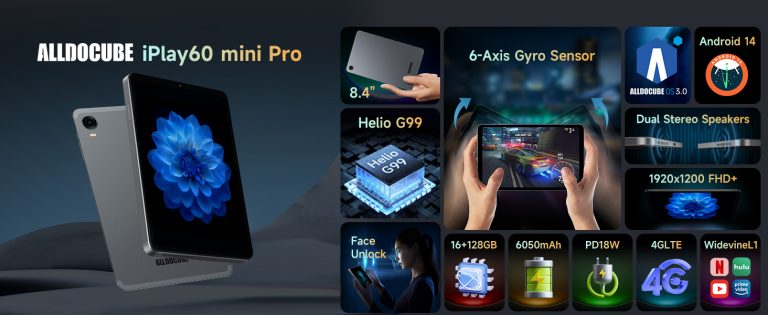
    First, the technical stuff – there’s an 8.4-inch IPS display with 1920 x 1200 resolution, 350 nits of brightness and a laminated screen for an enhanced viewing experience. What this actually means is the screen is kind of amazing for the price. It’s incredibly sharp and clear, and boasts deep blacks and really vivid colors. It’s particularly noticeable when you’re watching movies, and is just fantastic for the price, and far better than any of the competition save for the far more expensive iPad Mini. It comes with a screen protector already installed, and this is a slightly matte one that give you more fell as you move across the screen.

    Design

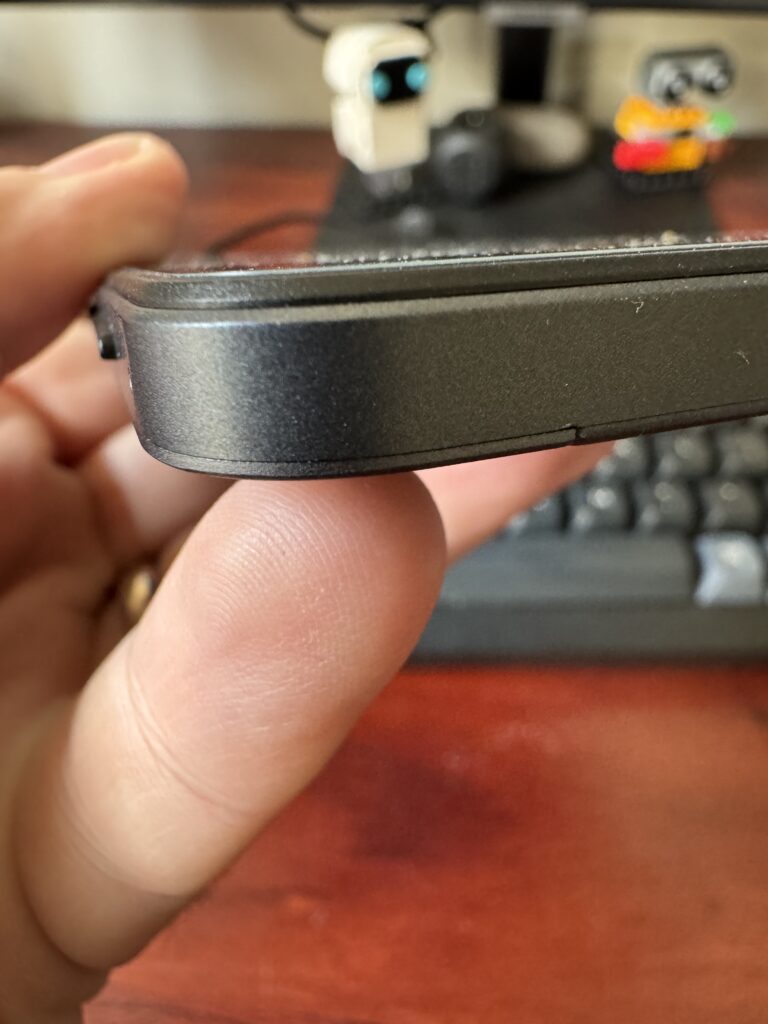
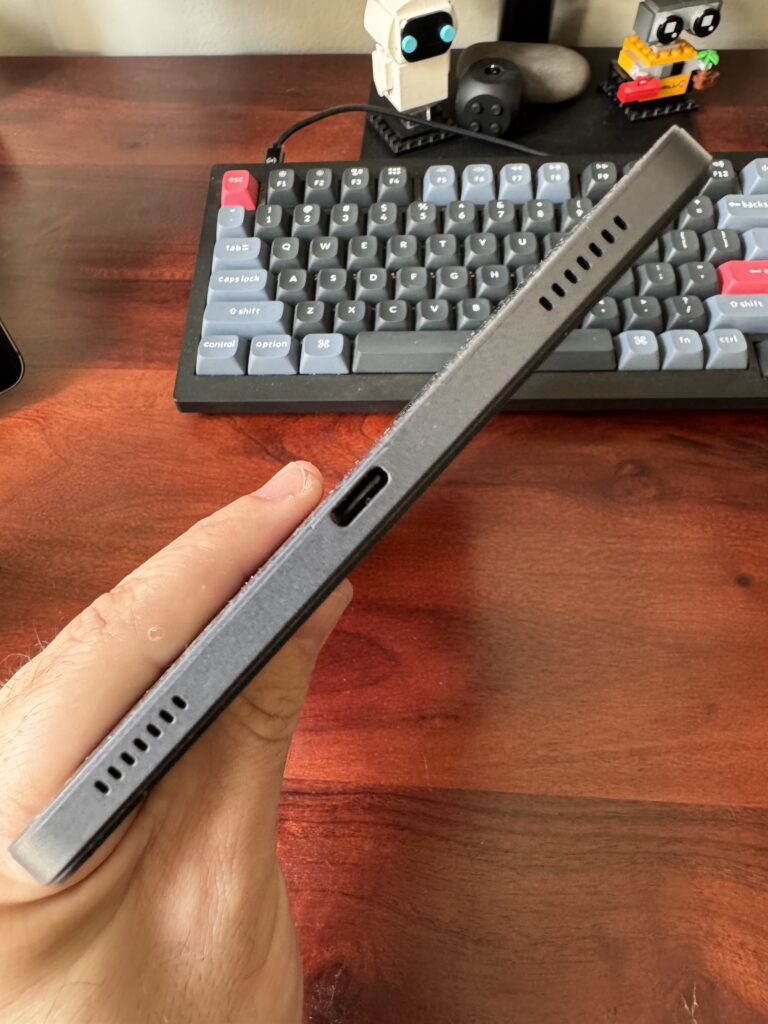
    It’s unashamedly a ripoff of the iPad, but in a blander grey color. It feels solid, although I dd notice a little more creaking than I’d expect when its flexed in any way, which makes putting tight fitting cases on a little stressful. However, it’s a pretty unassuming design.

    It’s 202.7 x 126 x 7.9 mm and weighs 310g. It’s a little too big to fit in trouser pockets to fully replace your phone, but is definitely a take anywhere device that’ll fit in most fanny packs.

    Battery life

    The battery capacity has been upgraded to 6,050 mAh from the previous model, and it now supports faster 18W charging. I found this was good for a full day if I’m streaming/watching a lot of movies, or around three days of more casual use.

    Software

    The Mini 60 uses Android 14, and it’s pretty solid. I did have some issues with an unresponsive screen, but following a firmware update I haven’t seen the issue – so make sure you update.

    Running Andoid means you get access to the Play Store, so there’s every type of app imaginable.

    Alldocube has also not stuffed the device full of unwanted software, there’s a single Alldocube app which is basically a link to their site.

    Tech specs
    Overall

    The Alldocube iPlay 60 Mini Pro is great. It’s fast enough for everything, the screen is amazing, and it’s only let down by awful sound. But as a couch or travel media device, it’s perfect – just pair it with some decent headphones.

    What else to consider

    Apple iPad MiniApple is one of the few major manufacturers to make a small tablet, and the iPad mini is heads above everything else here in terms of build quality, screen quality, ease of use (and price). However, it’s in need of an update, and Apple’s iPadOS software doesn’t feel quite right on the small screen, in fact it almost feels like the iOS we’re used to on phones would be a better fit here. The sound is fantastic, and phenomenal when compared to the disaster that is sound on the Headwolf and Alldocube devices. As a fully paid up Apple fanboy, I should love the iPad mini. But somehow it just doesn’t work for me – there’s still no WhatsApp iPad app, and it feels a little too close the the iPhone 15 Pro Max I use as my daily handset. 

    Headwolf FPad 5 – we’ve got a full review here but in a nutshell it’s a very similar tablet, just with a much less impressive screen. Unless it’s on some amazing discounted offer, we’d pick the Alldocude iPlay 60 any day.

    Alldocube iPlay50 Mini Pro NFEFirst, be warned there are a LOT of different models of this tablet, ranging in price from $80 to over $150. I tried the Mini Pro NFE version with 256gb of RAM, which retails for about $155 on Amazon. It’s fantastic, and very, very similar to the 60. However, I experienced a lot of flexibility in the chassis in particularly when taking it in and out of its case. However, the screen is great, and it’s also often on sale – if you get a bargain, it’s probably a better bet that the Fpad5.

    Amazon Fire HD8It’s cheap. I picked up a refurbished model for just over $40, and they are always on heavy sale for prime Day. You’re limited to Amazon’s app store (although there are workarounds to add Google’s Play Store). The huge issue is that it’s slow – and not just quite slow, it’s tap on the screen and go and make yourself a cup of tea slow. But there’s actually a lot to love about the HD8 apart from its price. It feels great in the hand without a case thanks to a rubberised back I really wish the Fpad5 had, and for reading and watching the odd youtube video or Netflix show, it’s just about good enough.

    Who are we?

    We’re the team behind The Tech Helper — we’ve spent years testing and reviewing tech, and we’re always on the hunt for gadgets that are genuinely easy to use.
  • Headwolf Fpad5 review: The $149 8inch Android tablet that gives the iPad a run for its money

    Headwolf Fpad5 review: The $149 8inch Android tablet that gives the iPad a run for its money

    At a glance: Of all the 8 inch tablets I’ve tried (including the iPad mini), the Headwolf Fpad5 is the best, and the one I use as my ‘daily driver’. The built quality, flexibility and speed mean it can do double duty as a media consumption device for reading and watching video, while also letting me do basic work tasks. However, there is one big caveat: the sound quality is awful (so buy some decent headphones).

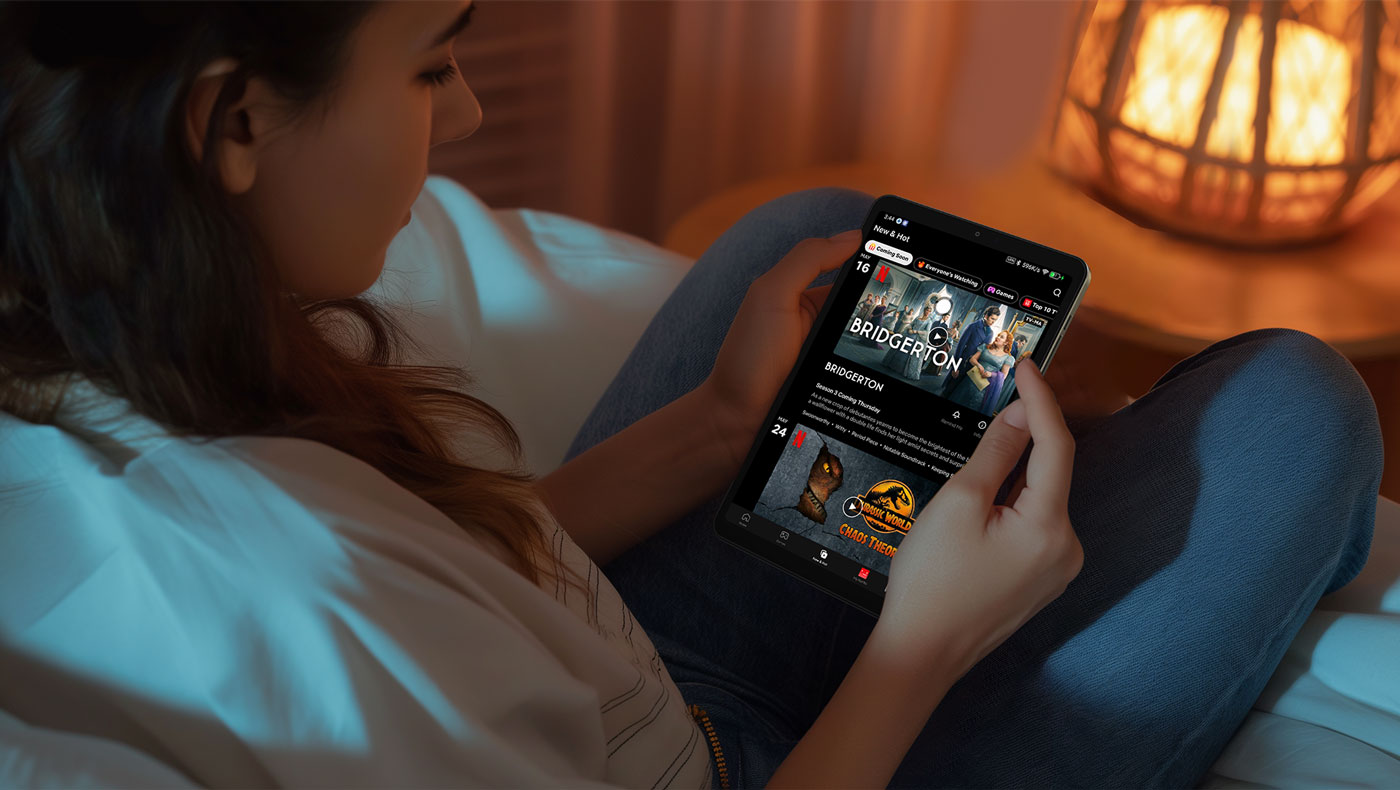
    8 inch tablets are a market overlooked by most manufacturers, but those of us who own them love them dearly. They are (in my opinion) the perfect sized device for media consumption and light work. They’re the perfect couch and bed device, with a bigger screen than your phone, but without the size and bulk of a full sized iPad.

    However, with the exception of Apple’s iPad mini (and even that is in need of an update) most manufacturers ignore the market. There are some devices from manufacturers such and Amazon, Lenovo and Samsung, but they’re all older models.

    However, there are some manufacturers, most notably Alldocube and Headwolf, who have stepped up. Headwolf is a name you’ve probably never heard of – it’s one of dozens of Chinese firms knocking out affordable (often downright cheap) Android tablets. On paper, the Headwolf Fpad5 is an incredibly capable machine – and I spent a few weeks using it to find out what it’s really like.

    Verdict: Flawed genius

    Of all the 8 inch tablets I’ve tried (including the iPad mini), the Headwolf is the best, and the one I use as my ‘daily driver’. The built quality, flexibility and speed mean it can do double duty as a media consumption device for reading and watching video, while also letting me do basic work tasks. However, there are caveats: the sound quality is awful and as with many Android tablets, it’s unclear just how many software upgrades you’ll be getting.

    • Buy now from Amazon for $149 (with coupon)
    • Processor: Helio G99 Octa Core Android Tablet
    • Screen: 8.4 inch FHD 1920 * 1200 
    • Memory/storage: 16GB RAM + 128GB ROM
    • Battery: 5500mAh
    • Cameras: 13MP+8MP
    • Software: Android 14

    Design and build

    The Headwolf is really well made, feeling solid in the hand, with a slightly rough rear that make it easier to grip than the rival Alldocube device, for instance. Buttons feel solid and have a great ‘click’ feel, the only issue I really found was with the USB power socket, which feels a little loose, raising concerns over its durability. One part of the design I particularly like is the bevelled screen edge, which makes is slightly easier to hold than rival devices.

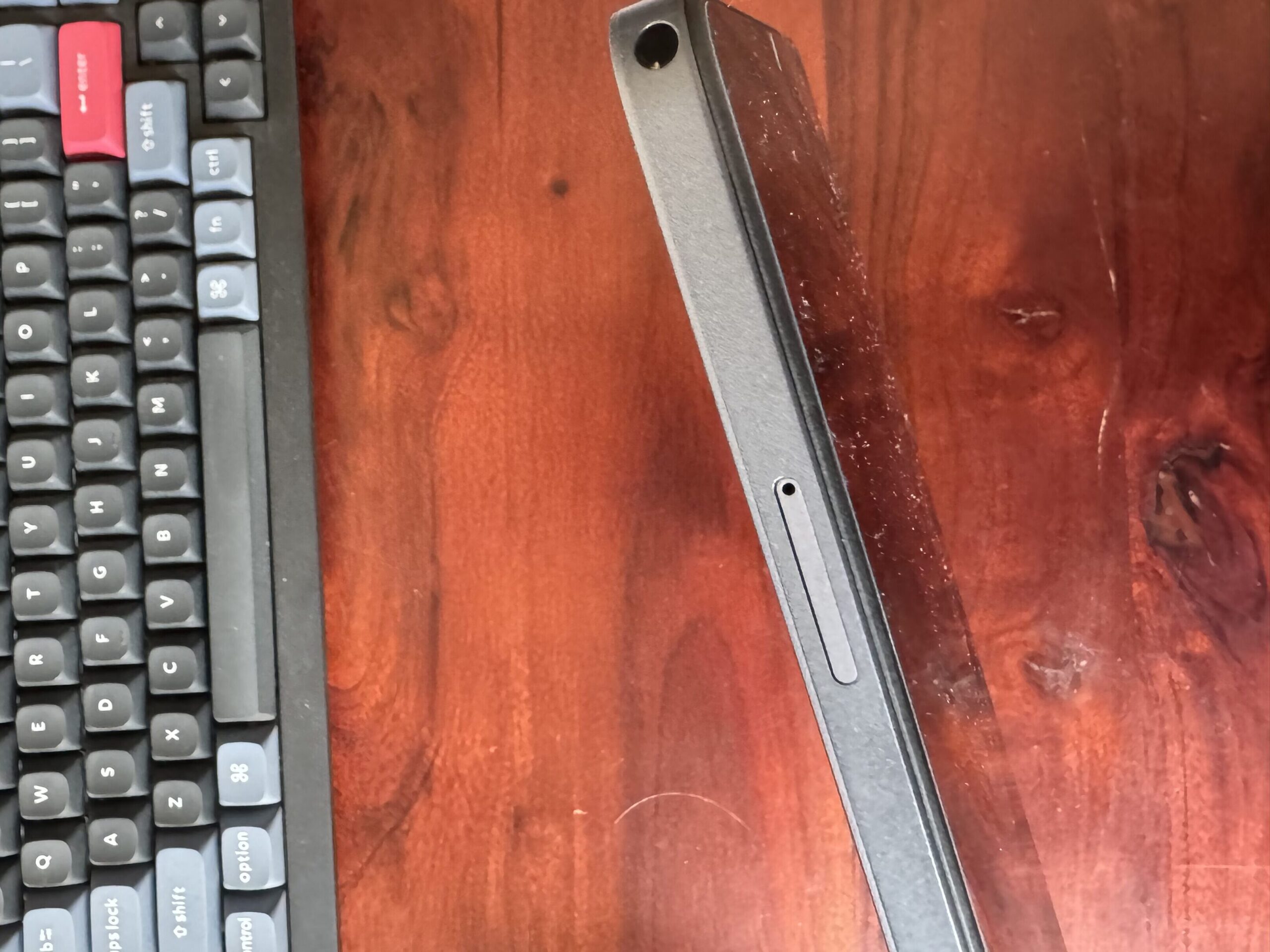
    There’s a headphone socket on the top, and a dual slot for your SIM card and and SD memory expansion card, although I was unable to try out the phone capabilities due to a lack of eSim support.

    Display

    Measuring 8.4inches, the Fpad5 screen is great. However, one thing I did notice is that blacks are not quite as deep as on rival devices such and the iPad mini and Alldocube Mini Pro, leading to. slightly washed out look. However, this is something that didn’t really bother me in day to day use. Colors are bright, and once you’ve played about with the resolution settings, which you’ll need to do in YouTube, videos look great.

    Battery life

    The Fpad5 packs a 5500mAh battery, which Headwolf says offers 6-8 hours of use. We found this to be true, averaging about 7 hours of reading and watching video, with the odd game playing session. Overall, while not outstanding, it’ll get you through an average day or a long flight (trust us, the 8 inch tablet really is the perfect plane device).

    Software

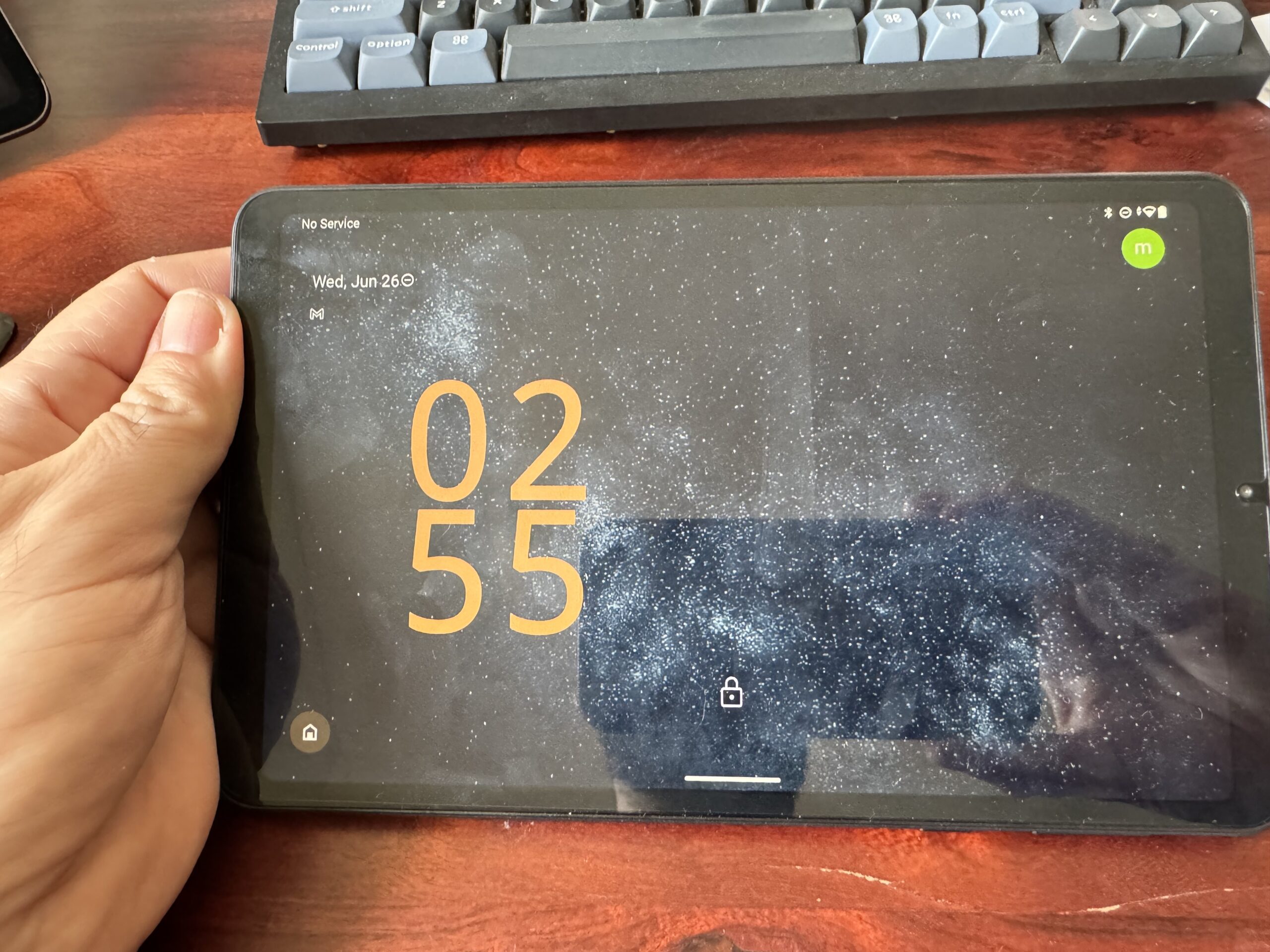
    Unlike its arch rival the Alldocube, the Fpad5 run Android 14, the latest version of Google’s OS. It also offers face unlock, which the Alldocube doesn’t, and it works relatively well if the lighting in your room is decent. One of the great things about the Fpad5 is that it’s running what is pretty much stock Android, so there’s not a bunch of software installed by the manufacturer, save for one marketing app.

    Sound

    One of the things that first attracted me to to Fpad5 was the promise of stereo speakers compared to the Alldocube’s mono. And while there are two speakers, they are sadly both awful, and also both on the bottom of the device, so when you’re watching a movie, for instance, you still get sound from one side only.

    What else to consider

    Apple iPad Mini: Apple is one of the few major manufacturers to make a small tablet, and the iPad mini is heads above everything else hear in terms of build quality, screen quality and ease of use. However, it’s in need of an update, and Apple’s iPadOS software doesn’t feel quite right on the small screen, in fact it almost feels like the iOS we’re used to on phones would be a better fit here. The sound is also great, and phenomenal when compared to the disaster that is sound on the Headwolf and Alldocube devices. As a fully paid up Apple fanboy, I should love the iPad mini. But somehow it just doesn’t work for me – there’s still no WhatsApp iPad app, and it feels a little too close the the iPhone 15 Pro Max I use as my daily handset. 

    Alldocube iPlay50 Mini Pro NFE: First, be warned there are a LOT of different models of this tablet, ranging in price from $80 to over $150. I tried the Mini Pro NFE version with 256gb of RAM, which retails for about $155 on Amazon. It’s fantastic, and very, very similar to the Fpad5. However, I found the build quality poorer, and experienced a lot of flexibility in the chassis in particularly when taking it in and out of its case. However, the screen is great, and it’s also often on sale – if you get a bargain, it’s probably a better bet that the Fpad5.

    Amazon Fire HD8: It’s cheap. I picked up a refurbished model for just over $40, and they are always on heavy sale for prime Day. You’re limited to Amazon’s app store (although there are workarounds to add Google’s Play Store). The huge issue is that it’s slow – and not just quite slow, it’s tap on the screen and go and make yourself a cup of tea slow. But there’s actually a lot to love about the HD8 apart from it’s price. It feels great in the hand without a case thanks to a rubberised back I really wish the Fpad5 had, and for reading and watching the odd youtube video or Netflix show, it’s just about good enough.

    Who are we?

    We’re the team behind The Tech Helper — we’ve spent years testing and reviewing tech, and we’re always on the hunt for gadgets that are genuinely easy to use.
  • Setting up an Android cell phone for a senior

    Setting up an Android cell phone for a senior

    • A few tweaks can make a big difference when setting up an Android cell phone for a senior
    • Changing the text size, cleaning up the homescreen and setting up some contacts are great first steps
    Do I have an Android Phone?
    Update your phone
    Download some apps
    Arrange your homescreen
    Make text bigger

    Android cell phones are an affordable, easy to use way to get a phone, with hundreds of handsets available – and with a few tweaks, setting up an Android cell phone for a senior is a cinch.

    From adding some contacts to boosting the text size, these tweaks will help you get the most out of phone, and stay in touch with friends and family (along with letting you do everything from watch TV and listen to music to play games and even do your shopping and banking).

    There are also a huge number of alternatives to an Android phone which, depending on how comfortable you are with technology, might be better – we have a full guide to them here.

    Do I have an Android phone?

    If you don’t have an iPhone, there’s a pretty good chance you have an Android phone. Although the Android software is made by Google, hundreds of manufacturers from Samsung to OnePlus make phones using Android software.

    One of the biggest issues with setting up an Android phone is that there isn’t one single version of Android. Manufacturers like Samsung have their own version, and many manufacturers don’t have the latest version of the software.

    We’ve tried to make these instruction useful for most Android users – but if your menus seem completely different, that’s why. If that’s the case, going to the maker of your phone’s web site to look for support is a good first step.

    Update your Android phone

    One of the biggest issues Android software has is that there are dozens of different versions of it.

    On top of that, there are dozens of different security updates for each version.

    To make sure you’ve got the latest updates, the first thing you should do with an Android handset is check for updates.

    On most recent Android handsets, you need to go into your phone’s Settings app (it’s the little picture that looks like a cog). From there, scroll down and tap System, then Advanced then System update – this should tell you if updates are available to prompt you to install them.

    Google has a more in depth guide here explaining what to do.

    Choose your apps

    It’s easy to download too many apps, but it reality, you’ll probably find you only actually use a handful.

    A couple of games, a banking app, shopping and messaging apps and some entertainment apps are a good start when setting up an Android cell phone for a senior.

    Google’s Play Store has thousands to choose from – and don’t be afraid to try new apps, although we’d recommend deleting them if you decide you don’t like them, otherwise you’ll end up with a phone full of apps you never use.

    A great way to get used to the phone is by playing some games, like Candy Crush or Words with Friends.

    Video and music streaming apps are also a must – and it’s worth taking the time to to set them up with favorite stations, shows and movies. We’d recommend TuneIn for radio

    Messaging is a tricky one, and really depends on the person. Even email can be a step too far for many people. One of the most popular apps is WhatsApp, especially its ability to set up groups for families to stay in touch. It’s also great as almost anyone with a smartphone can download WhatsApp to their device and use it (many apps are only available on some types of phone).

    Another to try is a streaming fitness apps to help keep people active.

    The NHS (Britain’s National Health Service) is also a goldmine of information and even has its own virtual workouts here. It’s also got a good guide to fitness for seniors here. Healthline also has some senior workouts here.

    The National Institutes of Aging also has some great resources, including online workout videos, here.

    Grocery shopping is another great use of a tablet at the moment, and you can download and set it up with favourite items already in the app. They’re a pretty high chance your grocery store has its own app, so download it.

    Medical apps are also particularly useful, and in particular something like a medication reminder app. Healthline has a list of the best ones here.

    Arrange your homescreen

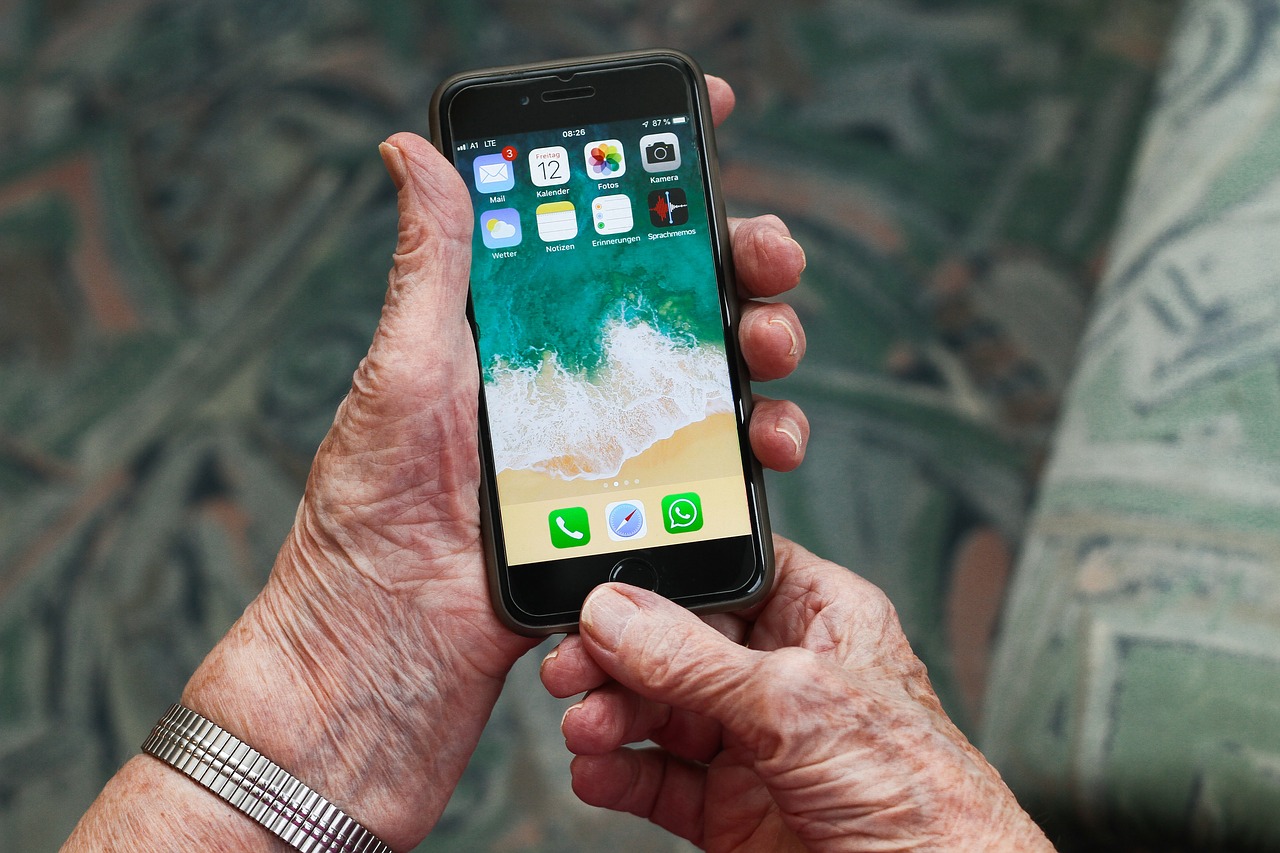
    Arranging your homescreen is key to making an Android phone useful. Less is better, and you really only want the apps you use ona daily basis to be on the first screen you seen when you switch the phone on.

    There is also a bit of the screen at the bottom known as a ‘dock’. This is where you want to put your most often used apps- usually a messaging app like WhatsApp, perhaps a game and your email.

    Make the text bigger

    Making the text bigger is a great fix if you’re struggling to read on a small phone screen, and one of the most important tweaks when setting up an Android cell phone for a senior

    From Android’s main settings menu, go to the “Display” category, then tap “Font size” to change the text size.

    By default, this should be set to “Normal,” but changing it to “Large” or “Huge” can really help.

  • Apple iPad Air: The best tablet for seniors?

    Apple iPad Air: The best tablet for seniors?

    • iPad Air is a slimline, extremely powerful tablet computer
    • Adding a keyboard case will turn it into a great laptop
    • It’s an expensive purchase – but worth it

    Apple’s iPad Air could be the best tablet for seniors – if you can afford it.

    The new slimline iPad Air is thin, yet packs a punch – it’s currently the most powerful iPad Apple makes thanks to a new superfast chip called the A14.

    However we believe that for many seniors, you simply won’t need the extra power.

    If you can afford it, the new iPad Air is a wonderful device – but we think for many seniors on a budget, Apple’s 10.2inch iPad ‘classic’ is still the one to buy – here’s why.

    Whatever iPad you get, don’t forget to read our guide to setting up an iPad for seniors

    iPad Air: Screen and design

    The iPad has a new design to reflect Apple’s new iPhone 12 (although its actually harking back to older designs, which also has the flat sides).

    The new Air comes in five colors, silver, space gray, rose gold, green, and sky blue.

    Its got a larger 10.9-inch Liquid Retina with 3.8 million pixels and advanced technologies, including full lamination, P3 wide color support, True Tone, and an anti-reflective coating.

    What this means in English is that the screen is really, really sharp, bright and easy to read.

    It’s also got a fingerprint sensor built into the power button so you can unlock it quickly and easily.

    iPad Air: accessories

    We’ve got as full guide to the best iPad accessories for seniors here, but the iPad Air is also compatible with Magic Keyboard and its floating design with built-in trackpad.

    iPad Air: Verdict

    If you can afford it, the new iPad Air is a superb choice you won’t regret. It’s stylish, fast and will work as a laptop as well as a tablet if you buy a keyboard.

    However, it is expensive. Because of this, we think most seniors will be fine with Apple’s ‘Classic’ iPad instead.

  • Which iPhone accessories are actually worth buying?

    Which iPhone accessories are actually worth buying?

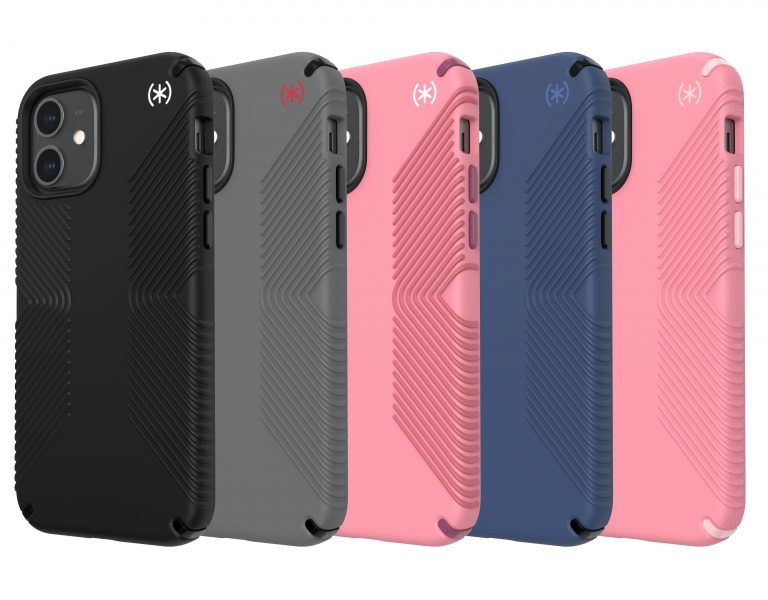
    It’s easy to end up with a drawer full of phone gadgets that never get used. For most people, only a handful of iPhone accessories genuinely earn their place – a good case, an easier way to charge, and something to help if the phone (or keys) go missing.

    The good news is these work the same way whether the iPhone is brand new or a few years old – MagSafe, the magnetic system most current cases and chargers use, has been on every iPhone since the iPhone 12, so there’s no need to worry about compatibility.

    We’ve put our actual picks, with current prices, in one place: the best iPhone accessories for seniors. It covers the case, charging stand and tracker we’d genuinely recommend, rather than a long list of things to buy.

    The Tech Helper is reader-supported. When you buy through links on our site, we may earn an affiliate commission.

  • What is 5G?

    What is 5G?

    5G is the fifth generation of cellular network.

    For most people, it means you’ll be able to download music and video much, much faster.

    Technologically, it’s a big step forward and will allow things like self driving cars and interactive augmented reality devices to work – but they’re all still some way in the future.

    Should I care about 5G?

    In the US right now, probably not. While there are 5G phones on sale, and Apple’s inclusion of the tecxhnology in the latest iPhone will give it a huge boost, the networks simply aren’t ready yet.

    At the moment, 5G is great – if you have coverage. And for most people, you probably don’t have coverage. That’s not to say 5G won’t be a hugely important thing in the future, we just aren’t there yet.

    5G is NOT a health hazard

    There have been a huge number of frankly insane conspiracy theories around 5G.

  • iPhone 12 for seniors: All you need to know

    iPhone 12 for seniors: All you need to know

    • The iPhone 12 is the first iPhone to use 5G networks
    • Available in four versions, with four different sizes
    • Choosing between them really down to screen size
    • For advice on setting up an iPhone for seniors, read our guide here

    Apple’s new iPhone 12 is the fastest, slimmest iPhone the firm has ever made – and the first to use 5G.

    Revealed in a slick event, the iPhone 12 comes in four different versions, each with a different size.

    It’s got a new faster chip, a new magnetic MagSafe system to attach chargers, and a boosted camera.

    Which iPhone 12 should you buy?

    Choosing between the four models really comes down to screen size.

    The iPhone 12 mini is the smallest, with a 5.4inch screen. If you feel overwhelmed or struggle to hold and use larger phones, this is the one for you.

    For most people, the iPhone 12 is the sweet spot.

    If you want a better camera, the iPhone 12 Pro is a great choice, while if you’re all about having the biggest and best, the Pro Max is massive, with a 6.7inch screen, and a shockingly good camera.

    Scroll down for an overview of all four with some more specs.

    Don’t buy an iPhone 12 for 5G

    The iPhone 12 can also use the latest 5G networks – but be warned, coverage of 5G is poor across the US, and we think it is not a great reason to buy an iPhone 12.

    We expect it to be at least a year before 5G is widely available.

    iPhone 12- the best iPhone for seniors (if you can afford it)

    If you can afford it, it is absolutely the best iPhone out there for anyone, not just seniors.

    But with prices ranging from $699 for the bottom of the range iPhone 12 mini to an eye watering $1399 for the top on the line 12 Pro Max, the pricing may be too much for many.

    If you’re on a budget, we still think the cheaper iPhone SE is the best deal – read why here.

    If you can stretch to an iPhone 12 for seniors, here’s what you have to choose from. It really comes down to screen size:

    https://www.youtube.com/watch?v=65JrtwtTOdc

    iPhone 12 Mini

    The 5.4-inch iPhone 12 Mini is, Apple says, the “smallest, thinnest, and lightest 5G smartphone in the world”.

    If you’re overwhelmed by bigger phones, it’s definitely a great choice.

    iPhone 12

    With a 6.1inch screen, the iPhone 12 is the model many expect to sell the best.

    It shares the same design as the mini, just in a bigger package. Boasting 5G, Apple’s new A14 Bionic chip and a camera upgrade, it’s a great allrounder.

    iPhone 12 Pro

    The Phone 12 Pro and iPhone 12 Pro Max will be available in four stainless steel finishes, including graphite, silver, gold, and pacific blue. 

    The smaller of the Pro pair, this has a 6.1inch screen.

    iPhone 12 Pro Max

    The photographers choice, the iPhone 12 Pro Max has every feature you can imagine, along with a gigantic 6.7inch screen.

  • How to set up an iPhone for seniors

    How to set up an iPhone for seniors

    • A few tweaks can make all the difference to setup an iPhone for seniors
    • You can change the text size, and rearrange the home screen
    • Adding home screen widgets lets you make the iPhone even easier to use

    Apple’s iPhone is by far the best choice for seniors – and a few simple tweaks can make a huge difference if you need to know how to set up an iPhone for seniors.

    While the iPhone is easy to use, setting it up can be complicated (trust me, I’ve set up dozens and still sometimes get stuck).

    We think the iPhone SE is the best choice for seniors, but if that’s out of your price range, we’ve got a guide to buying a cheap iPhone that can help you bag a bargain, and a guide to the best cellphone for seniors.

    It’s also worth checking out our guide to the best iPhone accessories for seniors, we think having some extra power cables, a decent case and even a wireless charger can make all the difference.

    If you’re not comfortable, you can always ask a relative to follow this guide for you. Either way, there are some really simple tweaks you can make to your phone, even if you’ve been using it a while, to make it even more straightforward and to set up an iphone for seniors.

    If you are reusing an old device, there are some limitations – for instance, group FaceTime video is not supported in older devices including anything earlier than the iPhone 6s or iPod touch (7th generation).

    There’s more information on that here (and some earlier models can join group calls, but only using audio).

    If you have any more hints or tips, let us know in the comments or our Facebook Group.

    So, if you’re ready to go, here’s how to set up an iPhone for seniors:

    ERASE AND UPDATE YOUR DEVICE

    The instructions here all relate to the latest version of iOS, called iOS 14, so make sure you update the iPhone to this. You’ll be getting all the latest security updates and enhancements as well.

    Updating is simple, go to Settings > General, then tap software update, and download and install. If you need more help, Apple has an easy to understand guide.

    If you need more in depth instructions, Wikihow has a good guide with easy to follow pictures here.

    If you’re reusing an older iPhone, they also have a guide to wiping your phone clean of all your own data and settings so you can start with a fresh ‘out of the box’ iPhone.

    If you hit any problems, AppleInsider has a decent video tutorial explaining all this, and some of the pitfalls here.

    It may also be worth disabling the passcode on the iPhone, as this can add a layer of complexity for users – instructions for doing that are here. Do be aware of the security risks though.

    CHOOSE YOUR APPS

    Be really careful what you download – usually a game or two, a banking app and some entertainment apps are a good start (remember messaging and video calls with FaceTime are built in). 

    You don’t want to overload the phone, but there are also an astonishing range of apps out there, so don’t be afraid to try new ones – although we’d recommend deleting them if you decide you don’t like them.

    A great way to get used to the phone is by playing some games, like Candy Crush or Words with Friends.

    Video and music streaming apps are also a must – and it’s worth taking the time to to set them up with favorite stations, shows and movies. We’d recommend TuneIn for radio

    Messaging is a tricky one, and really depends on the person. Even email can be a step too far for many people – perhaps suggest just using iMessage instead. However, many seniors are fans of WhatsApp, especially its ability to set up groups for families to stay in touch.

    It’s also worth investigating streaming fitness apps to keep people active.

    The NHS (Britain’s National Health Service) is also a goldmine of information and even has its own virtual workouts here. It’s also got a good guide to fitness for seniors here. Healthline also has some senior workouts here.

    The National Institutes of Aging also has some great resources, including online workout videos, here.

    Grocery shopping is another great use of a tablet at the moment, and you can download and set it up with favourite items already in the app. They’re a pretty high chance your grocery store has its own app, so download it.

    Medical apps are also particularly useful, and in particular something like a medication reminder app. Healthline has a list of the best ones here.

    SET UP CONTACTS

    Setting up a small number of contacts such as close family and friends is a good idea if you want to set up an iPhone for seniors, as it can make keeping in touch easier.

    It’s also worth calling/messaging each of them, so that when the app is opened, there are messages ready and waiting to restart the conversation.

    In iMessage, it’s also worth enabling the Show Contact Photos option so that everyone’s faces in Messages are shown.

    USE THE ACCESSIBILITY SETTINGS

    Apple has built a whole host of accessibility settings into the iPhone, and you can tweak them depending on the needs of the user.

    These range from everything from making the text size larger, to voice control.

    You can invert colors, reduce white point, enable grayscale, or choose from a range of color filters to support different forms of color blindness or other vision challenges.

    Apple has a great, easy to understand overview of all these features, and how to set them up.

    To get to the settings, go into the Settings menu on the iPhone, then Accessibility.

    TWEAK THE TEXT SIZE

    The one tweak you’ll almost certainly want to use to set up an iPhone for seniors is Display and Text Size, which you can find in the accessibility menu.

    There are several options here, from making all the text bold, to making text larger across the system. This is hugely useful, and it’s even worth (if possible) going throughb a few different sizes with your user to find the best one.

    If reading the text is still a problem, there are a host of other features you can try, from the built in screen magnifier (Zoom in the accessibility menu) to Speak Screen, which you can use to read your email, iMessages, web pages, and books. 

    To use this, turn on Speak Screen and swipe down from the top of the screen with two fingers, or just tell Siri to Speak Screen and have all the content on the page read back to you.

    If that’s not enough, VoiceOver is a gesture-based screen reader that Apple has developed to let people use an iPhone if they can’t see the screen at all. 

    For more details, Apple has an easy to understand guide.

    REARRANGE THE HOME SCREEN

    Once you’ve set up the accessibility features and downloaded the apps you need, rearranging the apps on the home screen to keep them to a minimum is critical to setting up an iPhone for seniors. 

    If you’re not sure how to move apps, Apple has a good guide here.

    Move everything you don’t need into a folder and move it to the second screen of the homepage to hide it.

    Don’t forget you can also add links to webpages to the home screen as well.

    To do do this, open the link in Safari, and tap the Bookmark icon at the bottom of the screen (it looks like a box with an upward-pointing arrow).

    Then, simply tap ‘add to homescreen‘ – you can even type in your own name at this point for the link. Tap Add, and it’ll appear on your home screen just like an app would – but instead of launching an app, it’ll take you to the webpage.

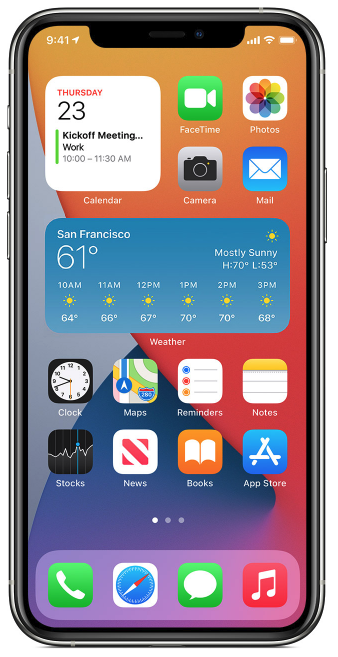
    You can also add ‘widgets’, large panels (see the picture).

    There’s a guide to adding them here, but from the Home Screen, touch and hold a widget or an empty area until the apps jiggle, then tap the add button in the upper-left corner to select what you want.

    Also make sure the most used apps are in the dock so they’re easily accessible.

    DECLUTTER THE DOCK

    The dock at the bottom of the screen displays suggested and recent apps along with those that you put there yourself.

    To make life simpler when setting up an iPhone for seniors, disabling the feature is a good idea. Here’s how:

    1. Open the Settings
    2. Tap Multitasking & Dock.
    3. Turn off the toggle for Show Suggested and Recent Apps from green to white.

    SET UP FAMILY SHARING

    Apple’s Family Sharing can be a godsend, making it easy for up to six family members to share App Store purchases and Apple subscriptions, including an iCloud storage plan without having to share an Apple ID. You can also set up permissions remotely with Screen Time, and approve spending and downloads.

    Apple’s own guide to using it is great, read it here – and predictably they’ve even made a video to explain it.

    ACCESSORIES

    We’ve got a full guide to the best iPhone accessories for seniors here.

    A stylus can often be a great add on for users who aren’t used to a touchscreen or struggle with one.

    It may well also be worth investing in a case and a stand – while iPhones are fairly sturdy, they probably will get dropped/knocked over a little.

    If you’re feeling particularly flush, we’d also highly recommend Apple’s Airpod Wireless headphones – they’re just great.

    CHARGING

    It’s also well worth buying an extra long power cable to put near your favorite chair, we recommend this.

    It’s worth setting up charging points, complete with long cables, not only next to the bed but next to a favorite chair.

    The Tech Helper is reader-supported. When you buy through links on our site, we may earn an affiliate commission.

  • The best iPad for seniors

    The best iPad for seniors

    • Best overall: Apple iPad (11-inch, A16 chip) – the easiest, most affordable full-size iPad, around $399
    • Best compact: Apple iPad mini (A17 Pro) – the same simple software in a smaller, lighter body, around $569

    Apple’s iPad is really the best tablet for seniors if you’re comfortable with a touchscreen – and can afford it. Many senior users find tapping and swiping far easier to pick up than a mouse or trackpad, and the iPad’s software is simple and consistent, so once you’ve learned the basics they carry over to every app.

    Best overall – Apple iPad (11-inch)

    The standard 11-inch iPad, now running Apple’s A16 chip, is the iPad most seniors should buy. It’s fast enough for video calls, streaming, email and web browsing, it’s got a sharp, bright screen that’s easy on the eyes, and Apple says the battery lasts all day on a single charge. It uses Touch ID (a fingerprint sensor) rather than Face ID, which we’ve found many seniors get on with more easily.

    We’ve got a whole guide to setting up an iPad for a senior, along with some of the accessories worth adding – our guide to the best iPad accessories for seniors covers cases, stands and styluses.

    Buy the Apple iPad on Amazon

    Best compact iPad – Apple iPad mini

    If a full-size iPad feels a bit big or heavy to hold comfortably, the iPad mini packs the same simple software and a very capable chip into a smaller, lighter 8.3-inch body – easier to hold in one hand, or to keep in a bag when out and about. It costs more than the standard iPad for less screen, so it’s really a pick for comfort and portability rather than value.

    Buy the Apple iPad mini on Amazon

    The Tech Helper is reader-supported. When you buy through links on our site, we may earn an affiliate commission.

  • The best cell phone for seniors

    The best cell phone for seniors

    • Best value iPhone: iPhone 14 (renewed) – the same simple, familiar iOS software for around $298
    • Best Android phone: Google Pixel 10a – a big, sharp screen and clever safety features, around $424
    • Best flip phone: Jitterbug Flip2 – huge buttons and a loud speaker, around $32
    • Best simple phone: Nokia 3210 – no apps, no fuss, incredible battery life, around $72

    Choosing a cell phone is confusing at the best of times, and it’s even more daunting if you’re not up to speed with technology – so we’ve found the best cell phone for seniors in each category, from simple flip phones to the latest smartphones.

    This isn’t a list of the newest, most expensive phones. We’ve focused on affordable options and, where it makes sense, buying a slightly older or renewed model to save money – and on ease of use above all else.

    Best value iPhone – iPhone 14 (renewed)

    If you’re reasonably comfortable with technology, a renewed iPhone 14 is our pick. Buying renewed (Amazon’s word for a professionally inspected second-hand phone) rather than brand new can save well over $400, and you get exactly the same simple, easy to understand iOS software as the latest model. iPhones have some excellent accessibility features too, including support for a wide range of hearing aids, and a Magnifier that turns the camera into a digital magnifying glass for reading small print.

    We’ve got a complete guide to setting up an iPhone for seniors, which covers exactly what to change to make it as senior-friendly as possible, and a guide to buying a cheap iPhone if you want to spend even less.

    Buy the iPhone 14 (renewed) on Amazon

    Best Android phone for seniors – Google Pixel 10a

    Google’s Pixel 10a is our pick if you’d rather not buy an iPhone. It’s got a bright 6.3-inch screen that’s easy to read, and a couple of features we think are genuinely useful for seniors: Call Screen, which lets Google’s assistant answer a call and ask who it is before you pick up (brilliant for filtering out scam calls), and Car Crash Detection, which can automatically call for help. Google also promises seven years of software updates, so it won’t feel outdated any time soon.

    Buy the Google Pixel 10a on Amazon

    Best flip phone for non-tech seniors – Jitterbug Flip2

    The Jitterbug Flip2 is designed specifically for seniors, with a large, easy to read screen and big, easy to press buttons. It’s got a genuinely loud speaker, so calls are easy to hear, and it works with hearing aids too. Don’t expect apps, but you can send texts and snap the odd photo, and it has a magnifier and flashlight built in. One thing worth knowing: it needs an active Lively phone plan to work, rather than a SIM from your existing carrier, so check their coverage and pricing before you buy.

    Buy the Jitterbug Flip2 on Amazon

    Best simple phone for seniors – Nokia 3210

    Nokia’s 3210 brings back a genuine classic – no touchscreen, no apps, just a traditional number keypad (and a modern version of Snake, for old times’ sake). Its standout feature is battery life: Nokia rates it at over 20 hours of talk time and weeks on standby, so it’s also a great backup phone to keep charged for emergencies. One important note: this is a GSM phone, which means it’ll work fine on AT&T, T-Mobile or their prepaid networks, but not on Verizon – worth checking which network your relative uses before ordering.

    Buy the Nokia 3210 on Amazon

    Whichever phone you choose, if a case would give extra peace of mind, our guide to the best iPhone accessories for seniors has some good options.

    The Tech Helper is reader-supported. When you buy through links on our site, we may earn an affiliate commission.