Category: Smart Home & Gadgets

  • Meta Quest 3S Review: The best value VR headset out there

    Meta Quest 3S Review: The best value VR headset out there

    Verdict: The Meta Quest 3S is the perfect choice to try out mixed and virtual reality, and I’ve been surprised by how much I actually used it. This is still a product for early adopters - but you don’t need to break the bank to get a glimpse of the future.

    Meta Quest 3S headset

    What we love: the best value headset out there, comfortable and fun to use

    Pause for thought: There’s no killer app yet, and there’s a risk of becoming bored after a few weeks

    Buy the Meta Quest 3S from Amazon ($299)

    What is Meta’s Quest 3S?

    The latest in Meta’s Virtual Reality headset range, the 3S aims to bring VR and what’s called mixed reality, where digital images are superimposed over the real world, to the masses. In a nutshell, it uses two small displays inside the headset to fool your brain into thinking its in a ‘real’ environment. Additionally, cameras capture a live video feed of the outside world letting it display this to mix the real and virtual worlds – known as mixed reality.

    Previous headsets have been lower quality, or more expensive – the Quest 3S is Meta’s attempt to create a relatively affordable entry level headset that for $299 lets people curious about the technology try it out.

    Setup

    Setting up the Quest is a little confusing, due to the lack of instructions. Once you realise you need to download an app to get going, it’s pretty straightforward, although the strap design does take a bit of tweaking to get right – but unlike most other headsets, I didn’t feel any need to buy a replacement heavy duty strap. One neat touch was that my prescription lenses for the Quest 2 from honsvr.com worked perfectly in the 3S, and took about 30 seconds to swap over.

    Mixed reality

    One of the interesting things about the current state of headsets is the focus on mixed reality – blending the virtual with the real world. Apple’s $2500 Vision Pro is the benchmark here, and is jaw droppingly good. But the Quest 3S does a surprisingly good job here, using  2 cameras to create stereo color passthrough of your environment. I was surprised with just how good it’s cameras and software are – I actually found myself confidently walking around my apartment wearing it, much to the amusement of my wife (and bemusement of my dog).

    While there is a mix of VR apps that take up your entire view and mixed apps that incorporate passthrough, you can also see the real world anytime by pressing the action Button on the bottom of the headset. It also shows the real world if you come close to a wall or furniture (it actually picked up my dog dog a few times as well).
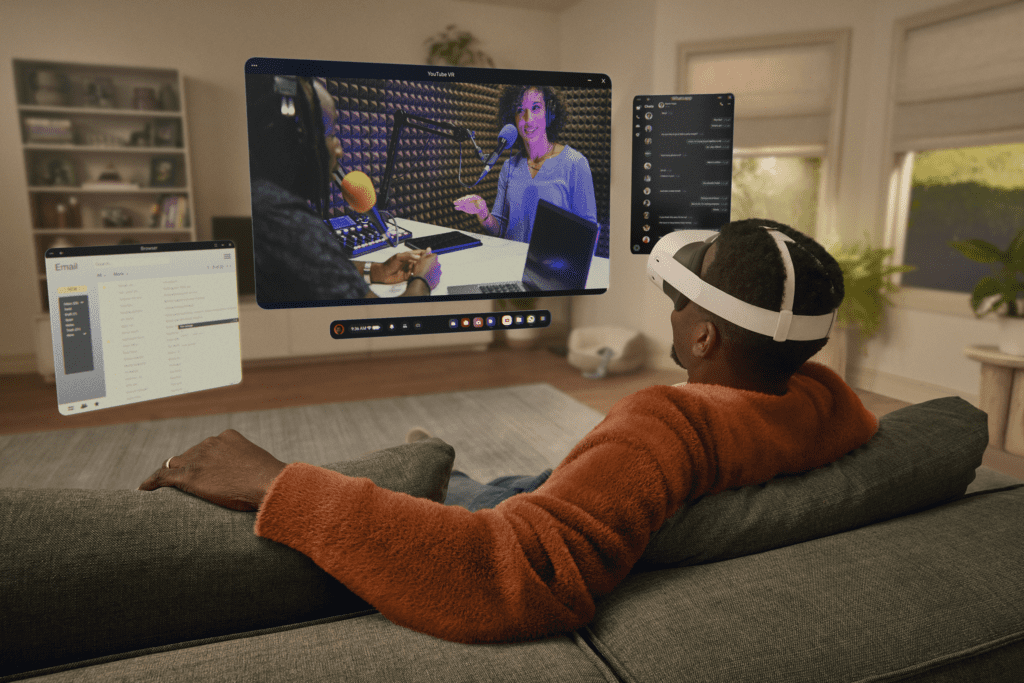
    the Quest 3S does a surprisingly good job here, using  2 cameras to create stereo color passthrough of your environment
    The Quest 3S does a surprisingly good job of passthrough, using 2 cameras to create stereo color passthrough of your environment

    While chips are really the last thing you should care about, the Snapdragon XR2 Gen 2 chipset here is fast – at no point did I notice any kind of lag.

    What can you do with it?

    High-definition screens give a resolution with 1832×1920 pixels per eye, and while the Quest 3 offers a higher resolution, it’s not enough to warrant the extra cash in my opinion.

    The image quality is great, and good enough for most uses. I found myself surprised at how much I used the Quest 3S as a media consumption device, watching Youtube videos and even a couple of concerts in Meta’s Horizon Worlds virtual space.

    There’s a fully stocked app store for you to download games, and there are some big names in there lie Beat Saber and Fruit Ninja, which work really well in VR. However, there are a lot of pretty bad games and what are really little more than demos, so be careful when buying.

    There’s also a web browser you you can watch Netflix, and apps like Youtube which let you watch your videos on a huge screen that virtually appears in front of you. It’s a really good experience, and I found myself using it more than I expected.

    While games are a little hit and miss, I got weirdly addicted to Eleven Table Tennis, and also found several of the fitness apps, most notably Supernatural, were excellent and something I could imagine making me come back to the headset again and again.

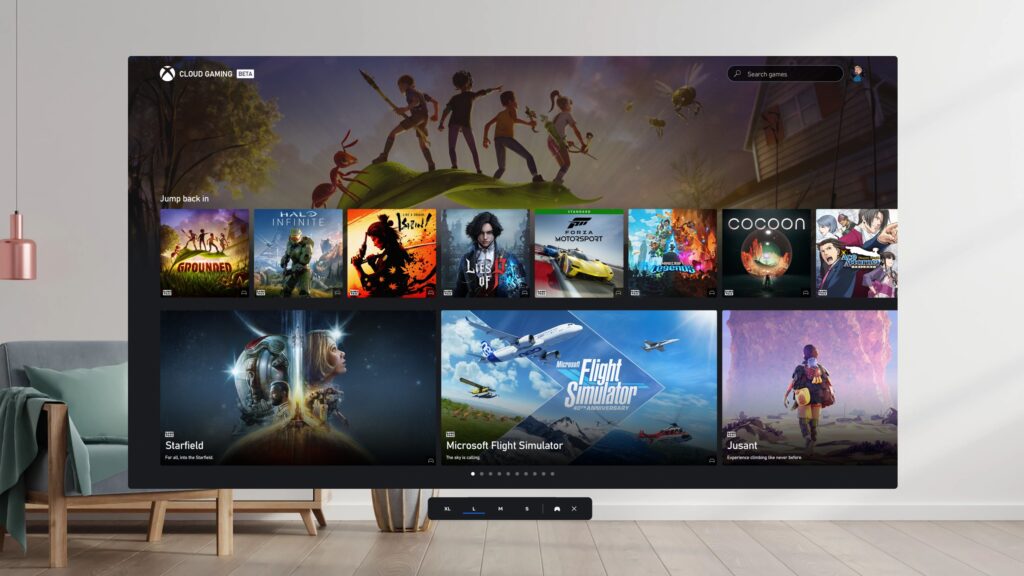
    There’s also an Xbox app allowing you to stream games to the headset and play using a real xbox controller, a really neat app that takes advantage of Microsoft’s cloud gaming service. I found it worked really well, and was actually far more immersive than I expected.
    The hardware

    The headset is light and once the strap is adjusted, easy to take on and off. Weighing 54grams, it’s balanced well so doesn’t really feel heavy on the face. You can also lie down and still use apps, which is great for watching videos.

    The Quest 3S starts at $299.99, the same price as the Quest 2 at launch, and comes with 128GB of storage, or you can upgrade to 256GB for $399.99. I think the $299 option is fine for most people.

    There are two controllers in the box, which are light and easy to use. The Quest 3S can also track your hands, and I found this really useful and my preferred way of interacting – although sometimes its less accurate than a controller (and many games require you to use the controllers).

    Sound is delivered through two speakers in the arms of the device, and it’s surprisingly good, which is just as well as there isn’t a physical headphone jack on the device, although you can either either the USB-C charging port or bluetooth headphones.

    Battery life

    Meta says the 3S runs for about 2.5 hours, and I found this to be about right. It’s also pretty quick to charge, with a USB-C port on the headset.

    Overall

    The Meta Quest 3S is a really great way to get a glimpse of the future of this tech. Will you use it every day? Probably not. But for the odd workout, game and even virtual event, it’s a great system that really gives software developers and consumers alike a way to see what the future, when this tech is built into your glasses, is going to be like. It’s also crucially affordable enough that it’s really one killer app or game away from being an albeit rather expense impulse purchase.

  • Amazon Prime Day: how to actually get a good deal

    Amazon Prime Day: how to actually get a good deal

    Amazon runs Prime Day sales a couple of times a year (usually one in summer and a second, smaller one in October), with discounts across almost everything, including a lot of the gadgets we recommend on this site. Here’s how to make the most of it without getting caught out.

    You need a Prime membership

    Most of the best Prime Day discounts are only available to Amazon Prime members. If it’s a one-off purchase, Amazon usually offers a free trial that’s long enough to cover the sale, so it’s not necessary to pay for a full year just to catch one event.

    What’s usually worth watching for

    Amazon’s own devices – Echo speakers and displays, Fire tablets, Kindles – tend to see some of the deepest discounts of the whole year during Prime Day, often 30-50% off. It’s a good time to pick up a device from one of our buying guides, like the best computer for seniors, at a lower price than usual.

    Check the discount is genuine

    Not every “deal” badge during Prime Day reflects a real saving. A quick search for the product name plus “price history,” or a free price-tracking browser extension, shows what a product has actually sold for recently, which makes it easy to spot a discount that isn’t really much of one.

    Watch out for copycat sales

    Prime Day is also a popular time for scam websites and ads pretending to be Amazon sales. If a deal arrives by email or text claiming to be from Amazon, it’s safer to open Amazon directly in a browser or app and search for the product there, rather than clicking the link. Our guide to avoiding online shopping scams covers more of the warning signs.

    We’ll update this guide with specific picks and prices close to each Prime Day.

  • Getting ready for the next Amazon Prime Day

    Getting ready for the next Amazon Prime Day

    Amazon Prime Day deals only stick around for a couple of days a few times a year, so specific prices go out of date fast. Rather than list deals that may no longer be running, we keep our up-to-date advice on shopping Prime Day well – what to look for, how to spot a genuine discount, and how to avoid copycat scam sites – in one place.

    Head to our Prime Day shopping guide for the current advice.

  • The best tech gifts for seniors

    The best tech gifts for seniors

    • Best overall: Frameo WiFi digital picture frame – family and grandkids can send photos straight to it from their phones, no tech skills needed on the other end, around $59
    • Best for staying in touch: Amazon Echo Show 5 – makes video calling as simple as saying a name out loud, around $90
    • Best for a reader: Kindle Paperwhite – a glare-free screen and adjustable text size, easier on the eyes than a phone or a real book with small print, around $160
    • Best for the TV: LEVN wireless TV headphones – turns the volume up for one person without blasting the whole room, around $70
    • Best stocking filler: Big button universal remote – huge, clearly labelled buttons that work with almost any TV, around $18

    The best tech gifts for an older relative aren’t usually the newest or most expensive thing – they’re the ones that solve a real daily annoyance without adding a new one. These are the gifts we’d actually buy, at a range of prices.

    Best overall – Frameo WiFi digital picture frame

    This is one of the few gadgets that genuinely gets used every single day. Anyone in the family installs the free Frameo app, and photos they send show up on the frame automatically – no emailing, printing, or figuring out a USB stick. It comes preset up out of the box, just needs a WiFi password to get going, and updating it becomes something the whole family does without thinking about it.

    Buy the Frameo digital picture frame on Amazon

    Best for staying in touch – Amazon Echo Show 5

    Video calling on a phone means holding it steady, finding the right app, and hoping the call connects. On an Echo Show, it’s “Alexa, call [name]” and the call just starts. It also works as a photo frame, a kitchen timer, and a way to ask for the news or weather out loud, so it earns its place on a counter or bedside table quickly. We cover this in more detail in our guide to the best computer for seniors.

    Buy the Amazon Echo Show 5 on Amazon

    Best for a reader – Kindle Paperwhite

    For anyone who loves to read but finds small print in paperbacks tiring, a Kindle Paperwhite is a genuinely thoughtful gift. The text size is adjustable up to very large, the screen doesn’t glare under a reading lamp the way a phone or tablet does, and a single charge lasts weeks rather than hours. Thousands of free and low-cost books are available straight from the device, with no computer needed to add them.

    Buy the Kindle Paperwhite on Amazon

    Best for the TV – LEVN wireless TV headphones

    When the TV needs to be louder for one person than everyone else finds comfortable, this is the fix. A small transmitter plugs into the TV, and the headphones pick up the sound wirelessly with their own volume control, so one person can turn theirs up as high as they like without anyone else needing to move. No pairing or setup beyond plugging the transmitter in.

    Buy the LEVN wireless TV headphones on Amazon

    Best stocking filler – Big button universal remote

    A regular remote crams dozens of tiny, similar-looking buttons into a small space, which makes it easy to press the wrong one. This one strips things back to large, clearly labelled buttons for the basics – power, volume, channels – and works with most major TV brands. It’s inexpensive enough to be a small add-on gift alongside something bigger.

    Buy the big button universal remote on Amazon

    The Tech Helper is reader-supported. When you buy through links on our site, we may earn an affiliate commission.

  • The best TV speakers for Seniors

    The best TV speakers for Seniors

    • The best TV speakers for Seniors can boost speech and increase volume
    • There are also soundbars that enhance speech
    • Wireless speakers can be carried anywhere
    Best for people on a budget
    Best for people with hearing problems
    Best wireless TV speaker you can move around

    Boosting your TV’s sound is essential for many of us, as they are are often not terribly loud and, well, a bit rubbish.

    However, don’t fear, there are some great speakers you can plug in to boost the sound – and use them to listen to music and radio as well.

    Some even have technology to boost voices, letting you listen more easily.

    Here are our picks for the best tv speakers for seniors. We’ve also got a guide to the best TV remote for seniors.

    Best for those on a budget – Roku Streambar

    Roku’s streambar is an absolute bargain, boasting a built in speaker and streaming software.

    Plug it into your TV and you’ll be able to stream TV shows, movies, music and radio from the internet, as well as listen to it all through this small, neat speaker.

    It also comes with Roku’s easy to use remote, which we think is great because it doesn’t have a huge amount of buttons.

    It’s also got a voice control function so you can also talk to your TV to ask it to change channel or increase the volume, a really useful feature.

    There’s also a neat feature that allows you to use your phone to listen to audio via headphones plugged into your phone using the Roku App.

    Best TV speakers for seniors with hearing problems – ZVOX AccuVoice AV157 Sound Bar

    If you struggle to distinguish voices from background noises, then the ZVOX AccuVoice AV157 Sound Bar could be for you.

    It’s designed to lift voices out of background noises in the same way a hearing aid does, by isolating voice frequencies.

    It’s got two settings for what the company calls ‘Accuvoice’ – normal (AC1) and ultra-boost (AC2) for ultra-clear voices.

    There’s also a great levelling feature which makes sure the volume always remains the same – banishing loud commercials.

    It’ss so small (17” wide) you can put it just about anywhere. And it works well above or below your TV, or to the left or right.

    It’s a small unit designed to fit under the TV (it’s 17″ wide), and blends in well.

    Setting it up is simple, with just one cable to your TV.

    It comes with its own remote, our can be setup to use your existing TV remote.

    NB If you have advanced hearing loss, there’s an enhanced version, the AV205, that lets your audiologist tune the speaker to your needs.

    Best wireless TV speakers for seniors – Sereonic Wireless TV Listening Speaker

    While a soundbar is great, some people prefer a wireless speaker they can move nearer to wherever they are sitting. Sereonic’s listening speaker fits the bill perfectly.

    To use it, you simply plug the transmitter box into your TV, then carry the speaker wherever you want.

  • Black Friday and Cyber Monday: how to actually get a good deal

    Black Friday and Cyber Monday: how to actually get a good deal

    Black Friday (the day after Thanksgiving) and Cyber Monday (the following Monday) are the two biggest tech sale events of the year in the US. Prices genuinely do drop on real products during this window – but so does the number of scams and fake “deals” that aren’t actually discounted at all. Here’s how to shop it well.

    What’s actually worth buying then

    Electronics are one of the categories with the deepest real discounts over this period – tablets, laptops, smart speakers, headphones, and TVs regularly drop to their lowest prices of the year. If there’s a specific gadget on your list – an iPad, an Echo Show, a laptop for a relative – it’s usually worth waiting for this window rather than buying at full price beforehand.

    Check it’s a real discount

    Some retailers raise a price a few weeks before the sale, then “discount” it back down to roughly where it started – so the percentage off looks bigger than the saving actually is. A quick search for the product name plus “price history” (or a free price-tracking tool) shows what it’s actually sold for over the past few months, which makes it easy to tell a genuine drop from a marketing trick.

    Stick to retailers you already trust

    This is the time of year scammers lean hardest on fake ads and copycat websites promising huge discounts on popular gadgets. If a deal for a well-known product appears on an unfamiliar website or through a social media ad, it’s safer to search for that same deal directly on a retailer already trusted, like Amazon or the brand’s own site, rather than clicking through and entering payment details somewhere new. Our guide to avoiding online shopping scams covers the warning signs in more detail.

    Don’t feel rushed

    Countdown timers and “deal ends in 2 hours” banners are designed to make a purchase feel more urgent than it really is. Most of the good discounts run for the full Black Friday to Cyber Monday stretch, not just a couple of hours, so there’s usually time to compare a couple of options before deciding.

    We’ll update this guide with specific picks and prices as the sale gets closer each year. In the meantime, our existing buying guides – including the best computer for seniors – are a good starting point for what to actually look for.

  • The best TV remote for seniors in 2024

    The best TV remote for seniors in 2024

    Modern TV remotes can be horribly complicated – so we’ve found the best TV remote for seniors (and anyone else who struggles).

    Changing the channel or the volume on your TV shouldn’t be complicated. But with the latest TVs, it can be.

    However, don’t panic – you don’t have to stick with the remote your TV or cable box came with.

    There are a huge range of alternative remotes, ranging from some with giant buttons to some you can speak to.

    We’ve found the best TV remote for seniors out there – and the best deals on them.

    Best big button TV remote for seniors – EasyMote

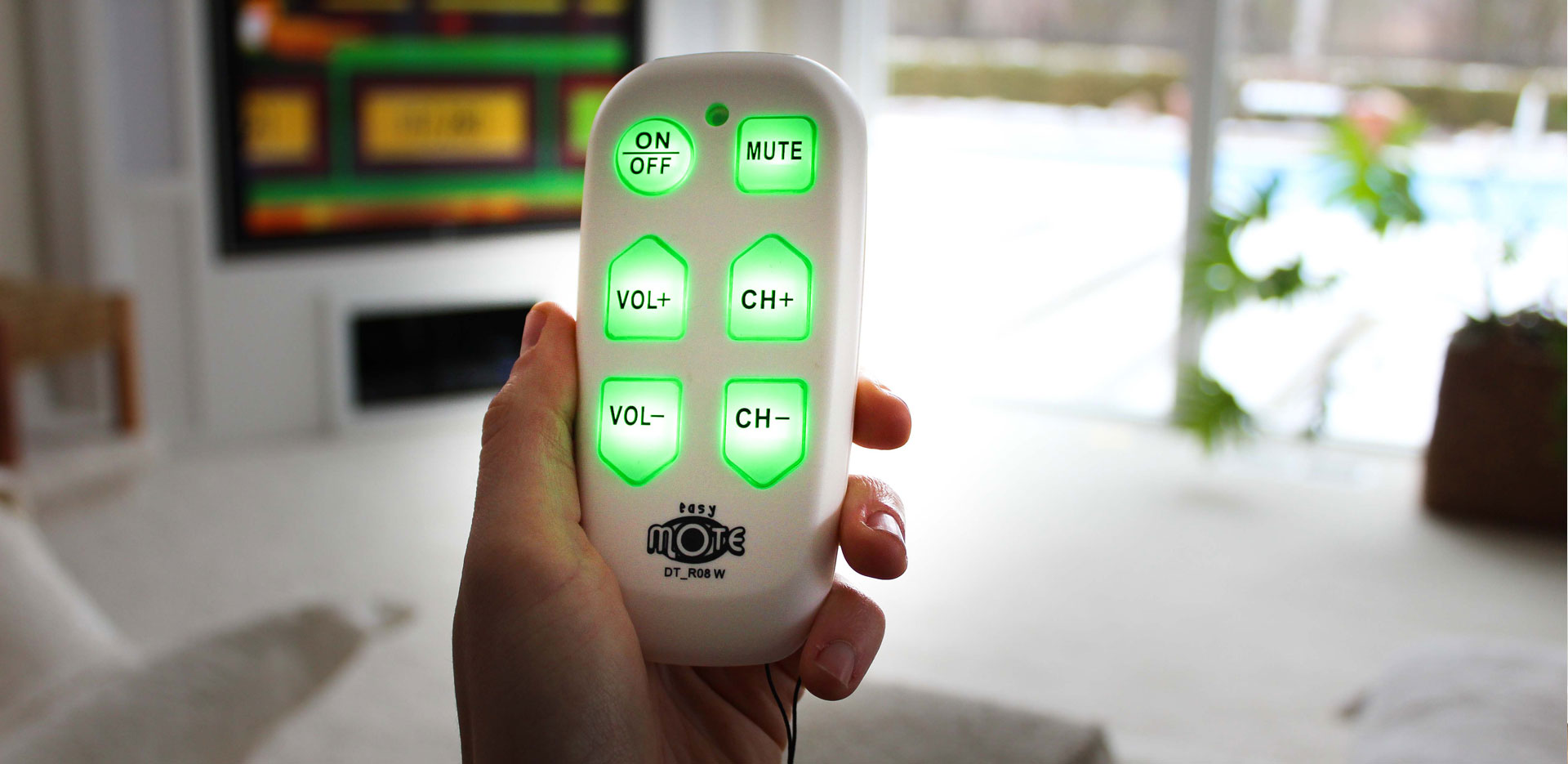
    When it comes to TV remotes, bigger can be better in terms of buttons. While there are a whole bunch of big button remotes for seniors out there, we think the EasyMote is the best choice due its its price and sheer simplicity.

    It’s only got six buttons – volume up and down, channel up and down, a power button and a mute button. Which is really all you need for a lot users. Helpfully its also backlit, so you’ll be able to use it at night.

    It’s simple to setup, and there’s a wrist strap to stop you dropping it.

    Once you’ve got your Easymote, we’ve even got an easy to follow video to help you set it up.

    Best Giant TV remote – QF-X Jumbo

    If you want a big button remote that can do more than just change channels and volume, or you are prone to losing remotes, the the gigantic QF-X Jumbo remote will fit the bill.

    The Jumbo Universal Remote can control up to eight separate devices, and the over-sized, glow-in-the-dark buttons mean you’re unlikely to lose it.

    The firm claims it will auto-pair with most common devices, and we think this large remote is easy to use, fits comfortably in your hand and is near impossible to lose.

    Control your Smart TV with speech: Amazon Echo Dot

    If you’ve got a modern smart TV, you may be able to control it remotely via Amazon’s Alexa system.

    If you can, then it’s worth buying an Amazon Echo Dot smart speaker to take advantage of this.

    You’ll need to install what Amazon calls a ‘skill’ onto the speaker so it can talk to you TV, but once you’ve done that, you should be able to control your TV by simply saying ‘Alexa, turn up the TV volume’ or Alexa, watch HGTV’. Commands and what you can do vary by TV maker, so check with Amazon here to see if yours is supported.

  • Is Apple’s $99 HomePod mini the best smart speaker for seniors?

    Is Apple’s $99 HomePod mini the best smart speaker for seniors?

    • If you have an iPhone or iPad, this is the best smart speaker for seniors who love music and radio
    • Integration with Apple Music is excellent, and Siri commands work brilliantly
    • Lack of a screen means no video calls – buy you can make calls from your iPhone and via FaceTime audio using the HomePod

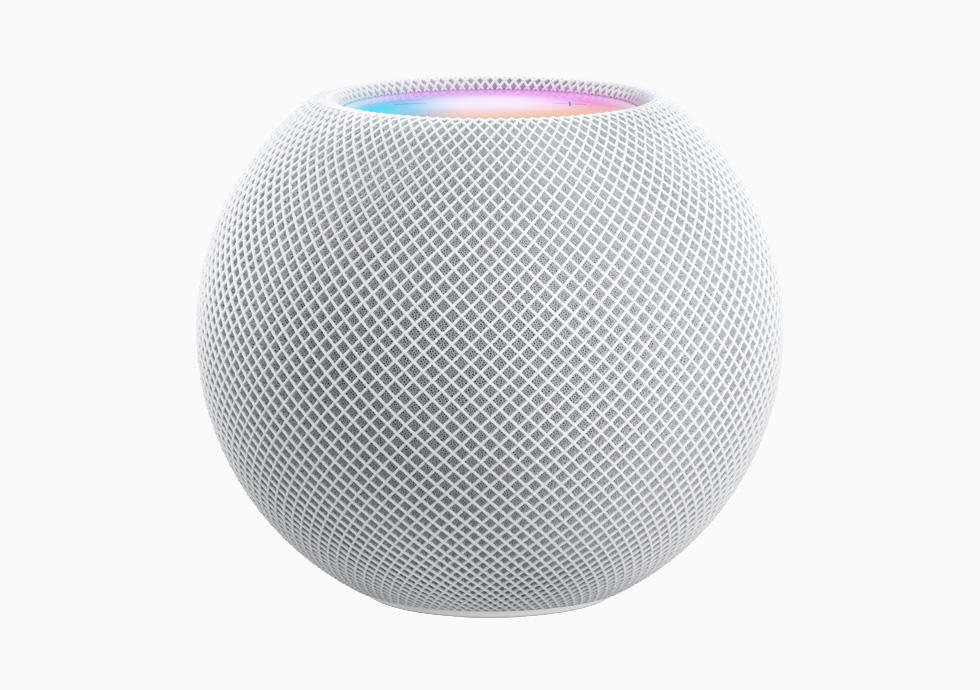
    Apple is taking aim at Amazon with its $99 smart speaker called the HomePod Mini, but is this the best smart speaker for seniors?

    Well, the answer really depends on what other gadgets you own.

    If you’ve got an iPhone or an iPad, then it’s a great speaker, especially if you use Siri and Apple Music a lot.

    But, if you’ve not already bought into the Apple system, something like Amazon’s Echo Show might be a better bet.

    homepod mini
    Apple’s $99 HomePod Mini

    HomePod Privacy

    Apple says security and privacy are fundamental to the design of the HomePod Mini.

    It’s only activated after “Hey Siri” is recognized locally on the device, or the user activates Siri by touch.

    Requests are not associated with the user’s Apple ID, and personal information is not sold to advertisers or other organizations.

    HomePod mini works with iPhone to complete requests for messages and notes on device without revealing that information to Apple.

    What can it do?

    Primarily, play music and let you talk to Siri, Apple’s smart assistant.

    HomePod mini is designed to work with Apple Music, podcasts, radio stations from iHeartRadio, radio.com, and TuneIn, and in the coming months, popular music services including Pandora and Amazon Music. 

    HomePod and Apple Music

    Using the HomePod Mini with Apple Music is a really great experience, far better than any other smart speaker.

    For instance, you can just ask ‘Siri, play me something I’ll like’ – and it’ll create a personalised station for you.

  • The best smartwatch for seniors: Apple Watch SE

    The best smartwatch for seniors: Apple Watch SE

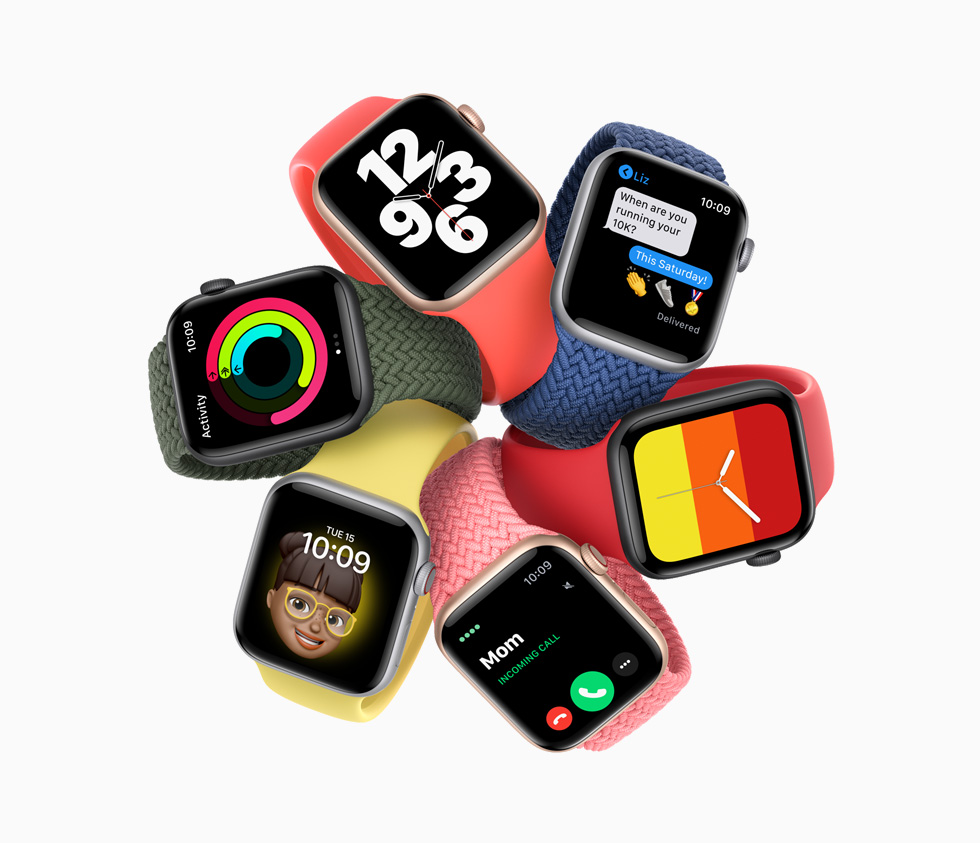
    While it’s not the most obvious choice for seniors, a smartwatch can be a genuinely useful safety net – and Apple’s Watch SE is our pick. It’s the more affordable member of the Apple Watch family, but it still has the features that matter most: fall detection, which can automatically call for help if you take a hard tumble and don’t respond, an irregular heart rhythm notification, and Emergency SOS, which calls emergency services (and lets your contacts know where you are) at the press and hold of a button.

    It pairs with an iPhone and mirrors a lot of what’s on the phone – you can see who’s calling, read texts, and reply with your voice, all without having to dig the phone out of a pocket or bag. The screen is bright and legible, and if your relative already has an iPhone, setup takes a few minutes.

    It’s worth knowing the GPS-only model needs to stay within Bluetooth range of an iPhone to make calls or send its location, so if being reachable while out on a walk alone matters most, it’s worth looking at the (pricier) cellular version instead, which works independently of a nearby phone.

    Buy the Apple Watch SE on Amazon

    The Tech Helper is reader-supported. When you buy through links on our site, we may earn an affiliate commission.

  • Setting up Amazon’s Alexa for a senior

    Setting up Amazon’s Alexa for a senior

    We think Amazon’s Alexa devices are perfect for those who aren’t comfortable with a tablet, laptop or phone, and an added bonus is that Amazon Alexa setup can be done remotely.

    Using voice commands means they’ll be able to listen to music, and even make video calls using a Alexa device like an Echo Show.

    It’s also simple to do the Amazon Alexa setup for a relative remotely, although to make wifi setup even easier, it may be best to get it sent to yourself to set up first.

    We recommend the Echo Show 8 – having a screen will make a huge difference, and allow video calls. It’s also well worth buying a stand along with the device, which you can do here – annoyingly it doesn’t come as standard.

    What you’ll need

    Before you start, you’ll need the network name and password of the person you’re sending the Echo device to. If they don’t know what that is, ask them to send a picture of their router where the information is shown. If they don’t have wifi, it might be worth asking a neighbour if they can use their network.

    You’ll also need the Amazon login details for their account – or you can set one up for them if they don’t have one. If you are setting up a new account for them, you’ll need an email address – using Gmail is usually easiest, you can sign up here.

    Once you have all that, here’s what you need to do:

    Amazon Alexa setup

    Time needed: 10 minutes

    Initial setup

    1. First, plug in the device to start setup, then tap the screen and select a language.
      Select your Wi-Fi network name from the list of available networks.

      You’ll see a welcome message on screen, before you’re asked for a wifi network. select your own network.

    2. Enter the Wi-Fi password, then tap done in the bottom right corner

      You’ll need to set the Alexa device up on your own wifi first – then you can add another network

    3. Type in your loved one’s Amazon account email and password and tap Sign in at the bottom

      Remember to add your loved one’s account and not your own

    4. Confirm the time zone and tap Continue to complete setup

    5. Add the ‘real’ wifi network (on an Echo Show)

      Swipe down from the top of the Echo Show screen and select Settings, then Network
      Scroll down and select Add a Network under Preferences
      Type in the name of the network
      Use the drop-down arrow under Security and select WPA/WPA2 PSK
      Type in the password (don’t forget it’s case sensitive) under Wi-Fi Password
      Select Save

    Download the app and setup contacts

    Downloading the app you your own phone will allow you to set things up and tweak them once your relative has their Alexa device up and running. If they don’t have a phone you can use the web interface at http://alexa.amazon.com.

    When you first login, you’ll need your relative’s cell or mobile number, and to get hold of them to give you a one time security code.

    Once you are in, set up contacts such as family members and friends so they can easily call them just using their name.

    Upload some pictures & setup apps

    While you’ve still got the Alexa device, it’s well worth setting up some other things such as a music service and photos.

    To see our full guide to using an Echo Show as a digital picture frame, click here.

    Using the Alexa app, you’ll be able to sign in as your loved one and tweak the setting for them, even once you’ve sent it to them.

    It may also be worth setting up a routine for things like waking up – this could read the news and weather then play a favourite radio station, for instance.

    Print out some basic commands

    We’ve got you covered on this – we’ve created a downloadable file you can simply print out and use here. It’s worth printing out a couple of them, one to put under the speaker, and one to keep on a favourite chair.

    We’ve created a whole page dedicated to getting going with Alexa here, so it may be worth sending this to your loved one.