Using a mouse or trackpad is one of the most important things you need to be able to do to use a computer and get on the internet.
However, it can be a a frustrating experience, especially at first, but there are some useful products out there that could make life a lot easier if you’re looking for the best computer mouse for seniors.
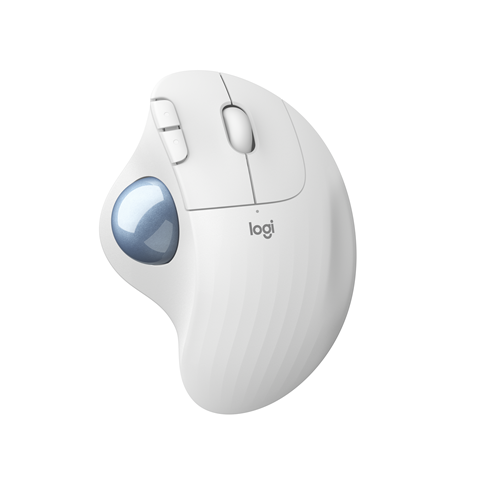
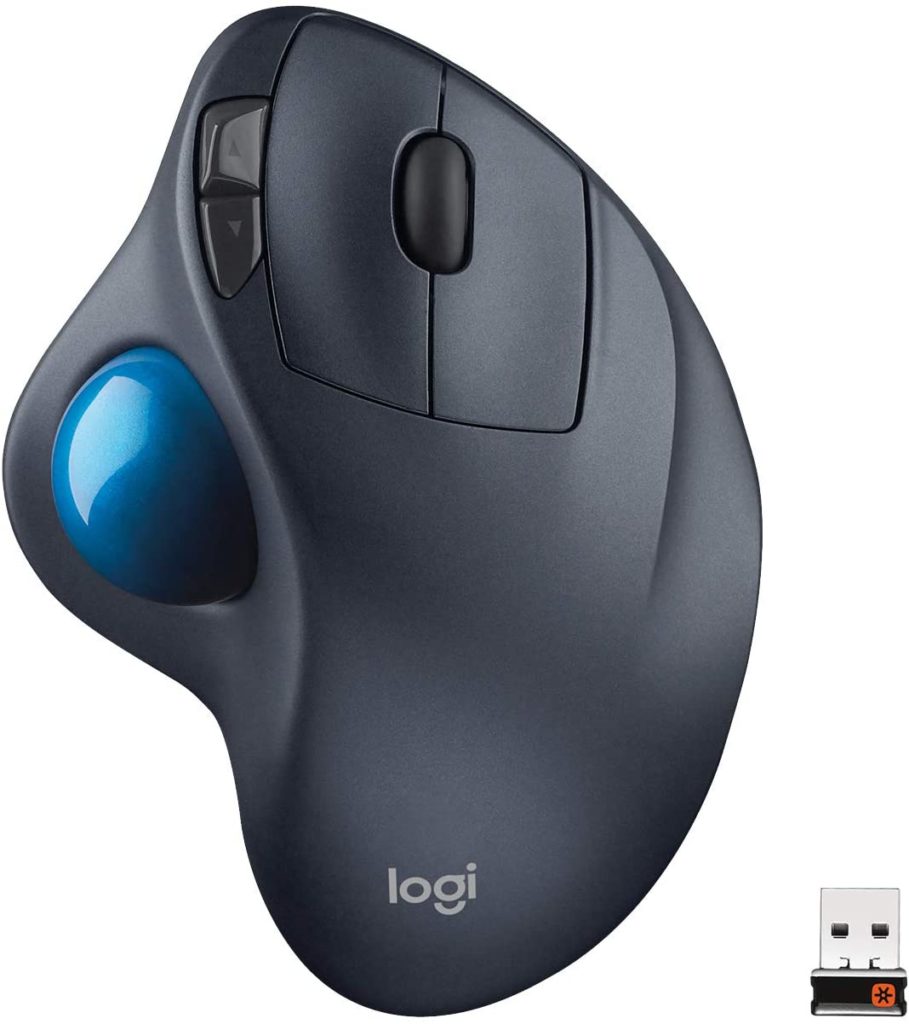
One great alternative is a trackball, and we think Logitech’s trackball is a brilliant alternative.
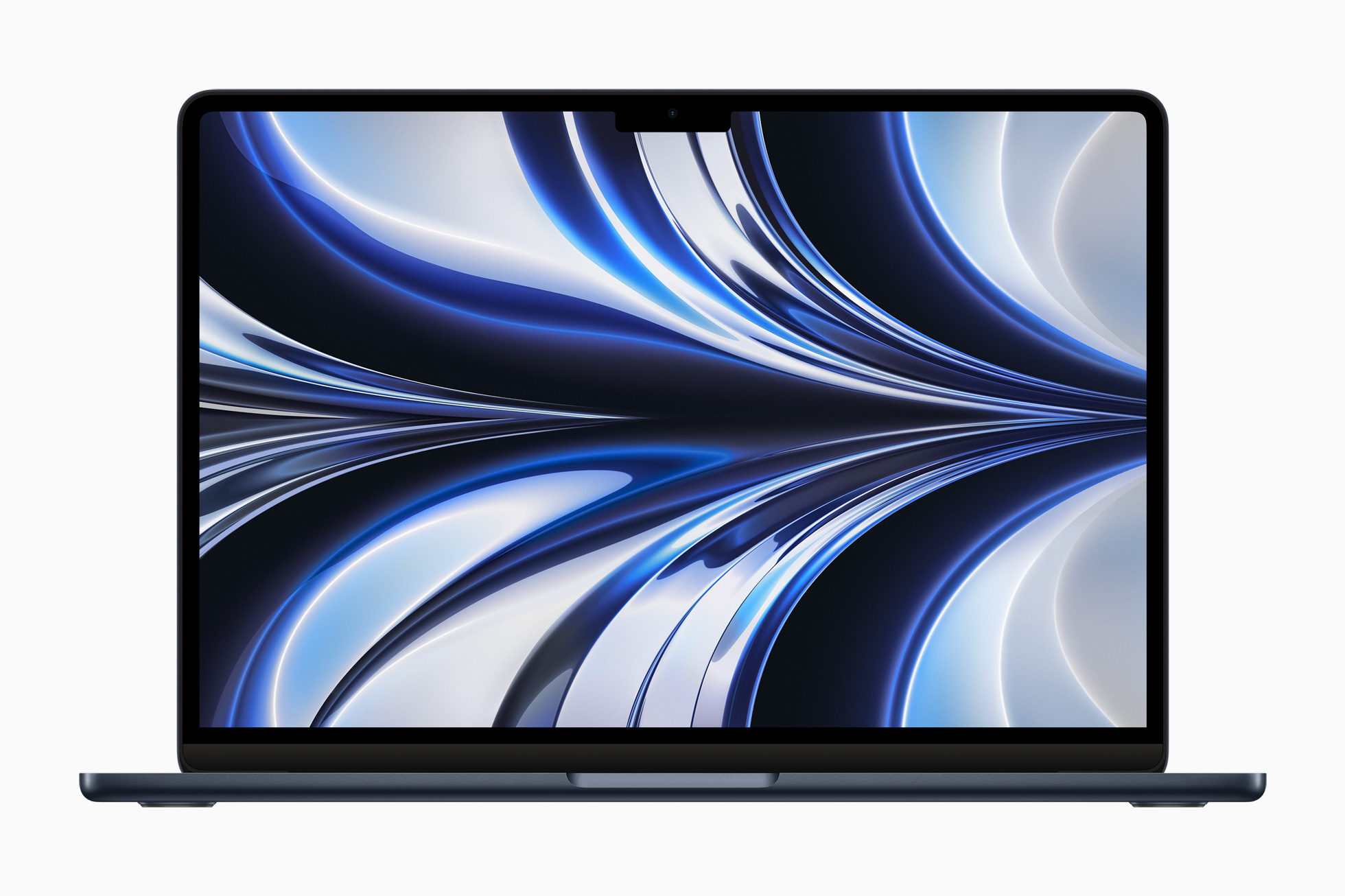
Apple’s MacBook Neo is the best laptop for seniors – a proper Mac for around $690
Great battery life, in a lighter, more colourful design – and hundreds of dollars cheaper than a MacBook Air
There’s a huge number of laptops, Chromebooks and other options out there – but we think Apple’s MacBook Neo is now the best laptop for seniors. It’s a proper Mac, at a much friendlier price than the MacBook Air, and everything it leaves out to hit that price is stuff most seniors will never miss.
Apple’s pricier MacBook Air is a wonderful laptop, but a lot of what makes it cost more – Thunderbolt ports for fast external drives, a wide-colour display for photo editing, ultra-fast charging – is aimed at people doing demanding work. For email, video calls, browsing, streaming and photos, the Neo does all of it comfortably, and Apple says the battery lasts around 16 hours, which held up well in everyday use.
It also comes in some genuinely nice colours – silver, indigo, blush and citrus – which, beyond just looking good, can make it easier for a relative to recognise their own laptop at a glance rather than it looking identical to everyone else’s.
Software
Of course the software is what makes or breaks a computer, and the MacBook Neo runs the same macOS as every other Mac. It’s excellent – simple, consistent, and it plays nicely with an iPhone or iPad if your relative already has one.
Overall
One thing worth knowing: demand has been high since launch, so it’s occasionally worth checking back if your colour or configuration of choice shows a delivery delay. Otherwise, the MacBook Neo is a fantastic all-round machine, and simple enough to use that we recommend it over every other laptop out there for most seniors.
A Chromebook doesn’t run traditional software like Windows. Instead, it uses Google Chrome browser. To set up your Chromebook, the first thing you’ll need is a Google account. You can set one up easily here.
It is possible to use a Chromebook without a Google account, and to do this you can select Browse as Guest on the login menu of the laptop. However, to get the best out of a Chromebook we’d recommend setting up a Google account – and don’t panic, you can limit the amount of information Google has about you.
Log in to your Chromebook
When you first switch on your Chromebook, you’ll be asked to choose a language, then connect to a WiFi network. Your WiFi password is usually printed on a label on your router (read our what is a router piece if you aren’t sure what or where it is).
Once you’re connected, you’ll get a bunch of terms and conditions, then a list of service the Chromebook will sync. These allow you to keep a copy of your settings on Google’s server, so that if you log in on another Chromebook, or even on a Chrome browser on another computer, phone or tablet, you’ll always have the same settings. You’ll also be shown options to let Google track your location. It’s simple to uncheck Use location if you want to prevent apps and services from using your device’s location. You can always change this option later, there are instructions to do that here.
If your password or account isn’t being accepted, Google has some troubleshooting tips here.
Choose your apps
A Chromebook doesn’t use traditional software like a Microsoft or Apple computer, buy instead apps – just like your phone. In fact, if you have an Android phone, it will often be exactly the same app. If you do, then once you log in the aps from your phone should download, install and set up automatically.
The most common apps are Gmail, which is Google’s email service, and Google Docs, the word processor and spreadsheet (and a few others). These are free, and you should see an option to set them up.
Elsewhere, Google’s Play Store is where you download new apps – you can browse and select the ones you want.
Set your Chromebook up for offline use
One useful feature you’ll want to set up immediately is the ability to use your Chromebook offline, without an internet connection. This means you’ll be able to access and work on documents, emails, and a few other apps even when your WiFi connection is out of range (or broken).
To do this you’ll need to be connected to the internet.
First, we’ll set up Gmail, the email app on your Chromebook.
Set up Gmail for offline use
Open the Gmail app
Open Gmail (either on Chrome or the Chromebook app) and then click on the cog in the upper right corner.
Enter settings
Choose Settings from the drop-down menu, then select Offline from the row of tabs that appear under the Settings heading.
Check the offline box
You’ll see the option to Enable offline mail. Make sure the tickbox is filled in, choose the options that best suit your situation, then select Save Changes.
Next, we’ll do the same for Google docs, so you can work on your documents offline. It’s actually the same process, so follow the steps above
Tweak the text size
If you find that everything on screen is just too small, you can increase the text size.
First, click on the system tray in the bottom right corner—there is where the clock, Wi-Fi, battery, and user icons are shown.
From there, click the Settings icon (the cog) and scroll all the way to the bottom, where you’ll see the “Show advanced settings” button. Click on this, then scroll until you see the “Web content” section.
There are two settings you can use: Font Size and Page Zoom
Font Size: If you’re just looking to increase the fonts across the system and leave everything else alone, use the font size and choose from the options ranging from Very Small to Very Large.
Page Zoom: This will allow you to zoom in on web pages, making everything (not just text size) bigger. Use the drop-down menu to set your preference.
Best budget pick: HP 255 G10 – a roomy 15.6-inch screen and a full keyboard for around $539
Best all-rounder: Dell XPS 13 – light, fast, with a sharp 13.4-inch touchscreen, around $829
Best for touchscreen fans: HP OmniBook X Flip – folds into a tablet and comes with a stylus, around $690
If a Chromebook feels a bit too limiting, or you need software that only runs on Windows – an older accounting program, a particular printer driver, or a favourite game – a traditional Windows laptop is still the right choice for a lot of seniors. There’s a huge range out there, so we’ve gone through the current crop to find the best Windows laptops for seniors right now.
If you’re not tied to Windows, it’s worth also reading our guide to the best Chromebook for seniors – they’re usually simpler to keep secure and cost less.
Best budget Windows laptop – HP 255 G10
HP’s 255 G10 is proof you don’t need to spend a fortune to get a laptop that’s comfortable to use every day. It has a roomy 15.6-inch Full HD screen, which makes text and icons easier to see without constant zooming, plus 16GB of memory and a 512GB hard drive so it won’t slow down as things fill up. It runs Windows 11 Pro out of the box, and keeps the full-size keyboard with a number pad, which some seniors managing their finances prefer over a cramped layout.
If you can stretch the budget a little, Dell’s XPS 13 is the best all-round Windows laptop we’ve found. It’s thin and light at just 2.2lbs, so it’s easy to carry around the house or pack for a trip, and Dell rates the battery at over 14 hours, which held up well in day-to-day browsing, email and video calls. The 13.4-inch touchscreen is sharp and easy on the eyes, and being a touchscreen means anyone already used to tapping a phone or tablet will feel instantly at home.
If your parent or relative is more comfortable poking at a tablet screen than typing, HP’s OmniBook X Flip is worth a look. Its 16-inch touchscreen folds all the way back so it works as a laptop or a tablet, and it comes bundled with a stylus pen, which can be easier to hold and more accurate than a finger for anyone with reduced dexterity. The screen is big and sharp too, which helps if reading small text is a struggle.
Whichever you choose, if a traditional mouse is tricky to use, our guide to the best computer mouse for seniors has some great alternatives worth pairing with any of these.
The Tech Helper is reader-supported. When you buy through links on our site, we may earn an affiliate commission.
Best budget pick: Acer Gateway Chromebook 314 – a 14-inch Full HD screen for under $200
Best all-rounder: Lenovo Chromebook m14 – a bright, roomy everyday laptop, around $325
Best that doubles as a tablet: Lenovo Chromebook 2-in-1 – a touchscreen that folds flat, around $390
We’ve got a whole page explaining what a Chromebook is, but in a nutshell, they’re a low cost, easy to use alternative to a traditional laptop – generally cheaper, simpler, and far less likely to get hit by a virus, which makes them a great option for seniors.
Best budget Chromebook – Acer Gateway Chromebook 314
The Acer Gateway Chromebook 314 is the best budget pick we’ve found, and it doesn’t feel like a budget machine. It’s got a proper 14-inch Full HD screen – sharper than most laptops at this price, which use a duller, lower-resolution panel – so text stays crisp and easy to read. It’s light, starts up in seconds, and is more than enough for email, web browsing, and video calls.
If you can stretch the budget a little, the Lenovo Chromebook m14 is our pick for most seniors. It’s got a lovely bright 14-inch screen, 8GB of memory (double what most budget Chromebooks offer, so it stays snappy with several tabs open), and a comfortable full-size keyboard. It’s light enough to carry from room to room, and Chrome OS updates itself quietly in the background, so there’s very little upkeep required.
Best Chromebook that doubles as a tablet – Lenovo Chromebook 2-in-1
The Lenovo Chromebook 2-in-1 has a great party trick – its touchscreen folds all the way back so it becomes a tablet. That makes it a good pick for anyone who finds tapping and swiping more natural than a mouse or trackpad, while still having a proper keyboard for typing emails or filling in forms. It’s a little pricier than the other two, but the flexibility of having both in one device makes it well worth a look.
Chromebooks start at less than $200 (about £160) and don’t get much above $500 (about £410) – with a few exceptions.
What software does a Chromebook run?
While it won’t run a lot of software, a Chromebook can do everything you need for basic computing.
It relies heavily on Google’s own apps, such as Gmail, Google Docs, and YouTube.
Unlike Mac OS and Windows 10, Chrome OS uses only web apps and won’t let you download applications. This means you can’t run Photoshop, Skype, iTunes or any other non-Chrome apps.
However, you can find alternatives in the Chrome Web Store, which is the Chromebook version of the App Store.
This includes online versions of software from Microsoft itself, so you can use Word, Excel, Outlook, Powerpoint and others. And Chrome’s native Google Docs and Sheets can handle Word and Excel files.
Google is also working to make Android apps developed for phones usable on the Chromebook. This is an ongoing project, but if you have a favourite phone game, its worth checking if its available yet.
What types of Chromebook are there?
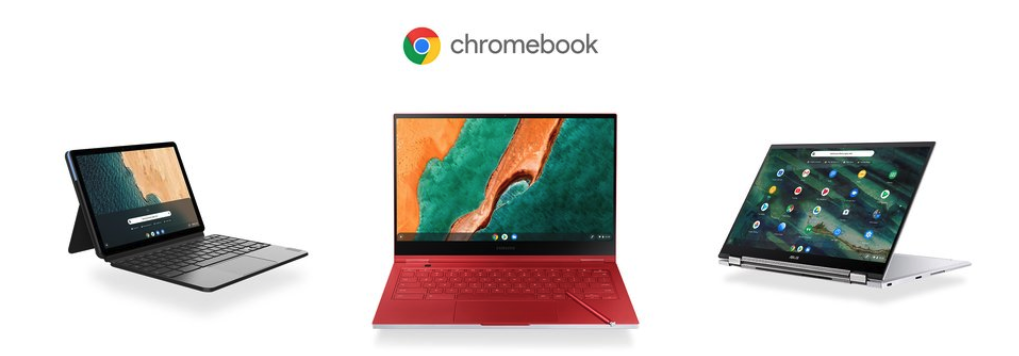
There are four main types of Chromebook:
Laptop – a traditional design, much like any other laptop.
Tablet – an iPad like design with just a large touchscreen
Convertible – a laptop that can flip over to allow you to stand it up and use it like a tablet
Detachable – a laptop you can take apart, so it turns into a tablet
Do you have to be online to use a Chromebook?
Even though the Chromebook is based on Google’s web browser, you can still do many things when you don’t have an internet connection.
For instance, you can edit Google Docs offline and watch movies and shows on Google Play offline.
The best cell phone for seniors – see our full guide
The best smart speaker with a screen – Amazon Echo Show 5
The best laptop – Apple MacBook Air (or a Chromebook on a budget)
Technology is one of the best ways to keep in touch with family and friends – but having the right device makes all the difference. So what is the best computer for seniors? A lot depends on how comfortable you (or the senior you’re helping) already are with technology. Don’t panic if a traditional laptop feels like too much – there are several other options, from a phone to a tablet or even a smart speaker.
Speaker, tablet, laptop or phone?
For most people with a reasonable amount of tech confidence, a tablet is a great option, and Apple’s iPad is the best tablet for seniors – it works as a touchscreen device for browsing and video calls, and doubles as a more traditional laptop if you add a keyboard. We’ve got a full guide to the best iPad for seniors, and if the price is a stretch, Amazon’s Fire HD 10 is a solid budget tablet at around $120.
A smartphone is often the only computer someone needs. We’ve got a full, regularly updated guide to the best cell phone for seniors, covering everything from a simple flip phone to the latest iPhone.
While laptops are a great option too, the latest low cost Chromebooks are far easier to use and less likely to get hit with a virus than a traditional Windows PC – see our guide to the best Chromebook for seniors. For a proper Mac without breaking the bank, Apple’s MacBook Neo is our overall pick for the best laptop for seniors.
Is a smart speaker the simplest option?
At the most basic level, a smart speaker with a screen such as Amazon’s Echo Show 5 may be the easiest option of all – it lets someone simply ask questions or make video and voice calls with voice commands, without learning how to operate a phone or tablet at all. It’s also affordable, at well under $100.
We’ve got a full guide to setting up Alexa for a senior, and a downloadable Alexa cheat sheet that’s worth printing out and leaving next to the speaker – a list of common commands nearby makes a huge difference early on.
You can also set up routines, so multiple commands trigger from a single phrase – saying “Alexa, good morning” can turn on lights, set the temperature and start a favourite radio station, all at once.
While most of us take home wifi for granted, don’t forget many people don’t have it set up, or find it confusing to manage. For a phone or tablet, it may be worth paying a little extra for a device with its own cellular connection, so it can get online on its own without relying on a home network at all.